
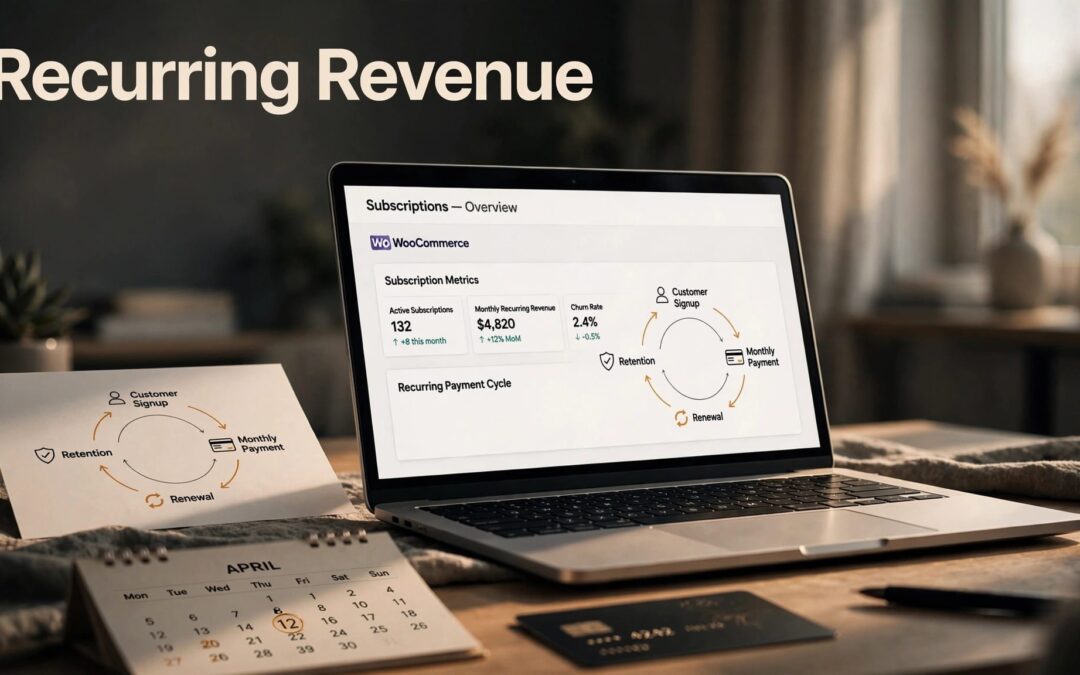
To set up WooCommerce subscriptions, install the WooCommerce Subscriptions extension, create a subscription product, and connect a payment gateway that supports your renewal method. Then test checkout and a renewal before you launch. The first payment is only half the setup.
You also need clear billing terms and scheduled tasks that keep running after customers leave your site. We recommend starting with one straightforward recurring product, getting that purchase flow right, then adding more choices.
Key Takeaways
- WooCommerce Subscriptions adds recurring product billing to your WooCommerce store.
- Simple subscriptions suit one offer; variable subscriptions give customers product choices.
- Automatic payments require a compatible gateway integration. Manual renewals require customers to pay each renewal order.
- Test the initial purchase, renewal payment, customer account, and order emails before publishing.
- When renewals fail, inspect payment and order records before retrying scheduled tasks.
Prepare Your Store for Recurring Orders
A subscription store needs more than a product page. It needs a working checkout, secure connections, and background tasks that run on schedule.
Install the subscription extension
Start with WordPress and WooCommerce installed. Complete your store's currency, tax, shipping, and payment settings before adding recurring billing.
Next, install and activate WooCommerce Subscriptions through your WordPress dashboard. It's a separate paid extension, not a recurring-payment feature included in the free WooCommerce plugin.
Take a backup before installation. If you're adding subscriptions to an existing shop, use staging for setup and testing. That keeps your current customers away from unfinished changes.
Give scheduled payments a reliable foundation
Your store still has work to do when nobody is browsing. Renewal orders, payment requests, and subscription changes depend on scheduled processing.
We offer WordPress hosting for website management and VPS hosting for stores that need greater control. Choose around your checkout workload, catalog, and technical needs.
Keep Cart, Checkout, and My Account outside shared full-page caching. Those pages contain customer-specific information, and customers need their own current totals and account details.
Choose the Right Subscription Product Type
Keep the first offer easy to understand. Customers should know what arrives, what it costs, and how often they're charged.

Use a simple subscription for one offer
A Simple subscription works when the product has one set of recurring terms and no customer-selected variations.
It's the cleaner starting point when you're selling a single recurring product. You set its price and billing schedule once, then give customers a clear description of what each renewal includes.
We recommend this option when extra choices would add confusion rather than value.
Use a variable subscription for product choices
A Variable subscription lets customers choose among variations. Each variation can have its own recurring price and subscription terms.
WooCommerce's coffee subscription example uses Ground and Whole Bean choices. That keeps related options together on one product page.
For this setup, create attributes, mark them as Used for variations, and generate the variations. Configure each variation's terms rather than assuming the parent product supplies every billing detail.
Create Your WooCommerce Subscription Product
Now turn the offer into something customers can buy. Work through the billing settings first, then polish the product page.

Enable the product type and set recurring billing
Open WooCommerce > Settings > Subscriptions. Under Subscription product creation, enable Simple subscription, Variable subscription, or both, then save.
Go to Products > Add New. Add your product name and select the appropriate subscription type in Product data.
Set the subscription price and billing interval. The recurring price is the amount charged at each renewal. Available billing periods include days, weeks, months, and years.
For a variable subscription, enter the applicable recurring terms within each variation. Save every variation before publishing the product.
Add optional terms and fulfillment details
Set a subscription length if the offer should end after a defined period. Use an ongoing schedule when customers should keep renewing until cancellation.
You can also add a sign-up fee or free trial. Keep both visible in the product description, including when the first recurring payment becomes due.
For physical products, configure shipping, weight, dimensions, and tax settings. For non-shipped services, use the appropriate virtual-product setting.
A monthly charge doesn't automatically explain your delivery promise. State what each shipment contains and when it ships. Finish with accurate product images, stock settings, and a description that matches the checkout terms.
Configure Payments and Renewal Timing
The product controls what customers owe. Your payment integration controls how that money is collected.
Enable a gateway for automatic renewals
Open WooCommerce > Settings > Payments and configure your payment gateway.
Automatic renewals need a gateway extension that integrates with WooCommerce Subscriptions. Accepting a normal card payment doesn't establish support for recurring charges.
WooCommerce's subscription payment gateway guide explains the available capabilities. You can also review WooCommerce > Status > Payment Gateway Support. The subscriptions capability identifies subscription support.
We recommend choosing the renewal method before publishing. Switching a store setting later doesn't convert existing subscriptions between automatic and manual renewals.
Decide whether to offer manual payments
Manual renewals ask customers to return and pay each renewal order. They can use gateways that don't support automatic subscription charging.
Enable Allow manual renewals at checkout if that fits your offer. Explain the extra customer step clearly, because an unpaid manual renewal can leave the subscription on hold.
Next, choose your renewal timing. Do not align follows each subscriber's purchase date. Alignment settings let you use a selected renewal day instead.
WooCommerce's subscription settings documentation covers these controls. Keep billing dates and delivery dates clear whenever they differ.
Test Checkout and a Renewal Before Launch
A successful checkout proves the first order works. It doesn't prove the next payment will happen correctly.
Use staging with your gateway's test mode or another non-production payment method. Keep test credentials separate from live credentials.
Run through the purchase as a customer:
- Add the subscription to the cart and review the recurring total, shipping, taxes, trial, and sign-up fee.
- Complete checkout and inspect the resulting order and subscription record.
- Open the customer account and review the subscription details and available actions.
- Process a test renewal, then inspect its payment result, renewal order, and emails.
On an eligible test subscription, Process renewal lets you exercise the renewal flow without waiting for the normal billing date.
WooCommerce's subscription renewal process explains how automatic and manual renewals differ. Test the method your customers will use.
Also test a failed payment in the gateway's sandbox when supported. You need to know what customers receive when payment doesn't go through.
If checkout itself breaks, our WooCommerce checkout error fixes help separate payment, plugin, and server problems. Finish testing before moving the offer into live checkout.
Fix Missed Renewals Without Creating More Problems
When a renewal fails, start with the affected subscription. A failed task is a clue, not permission to charge again.
Inspect the order before retrying
Open WooCommerce > Subscriptions and locate the affected record. Review its notes, status, related renewal order, and payment result.
Establish whether the payment failed, succeeded without updating the order, or never started. Our WooCommerce payment troubleshooting guide helps work through those differences.
Restore the subscription to Active only when that matches its actual state. Use Process renewal when a renewal needs processing.
If payment already succeeded, reconcile the existing order before retrying related work. Mark an order Processing or Complete only when its payment and fulfillment state justify that status.
An order status change doesn't collect money. Never mark an unpaid renewal as paid to clear an error.
Match scheduler errors with log timestamps
Open WooCommerce > Status > Scheduled Actions and locate the affected task. Read its log before running it again.
Then review WooCommerce > Status > Logs. When relevant, compare Failed Scheduled Actions entries with WCS Upgrade entries by timestamp. A nearby gateway error or upgrade routine can explain what happened.
A backlog of overdue tasks suggests scheduling trouble. Repeated failures in one task point toward its particular error.
Back up before updates. Test rollbacks and plugin conflicts on staging, away from live checkout.
Frequently Asked Questions
Does WooCommerce include recurring billing for free?
The free WooCommerce plugin doesn't include the WooCommerce Subscriptions extension. You need that paid extension for the setup described here.
Hosting, the subscription extension, and payment processing are separate parts of your store. We recommend planning for all three before pricing your recurring products. That gives you a clearer view of what each renewal needs to cover.
Can customers manage subscriptions through their accounts?
Customers can view subscription information through My Account. Available actions depend on your store settings, subscription status, and payment gateway capabilities.
Payment-method changes and other management options aren't identical across every gateway. Test the customer account alongside checkout so your instructions match the controls customers receive.
Make the account link easy to find in your store navigation and customer communications.
Launch With a Renewal Flow You Can Trust
A subscription product is ready when checkout, renewal payments, and customer account tools work together. Clear billing terms give customers confidence. Tested scheduled processing keeps the next order moving.
We recommend launching one complete offer before expanding your catalog. Keep that first setup easy to buy, easy to manage, and easy to support.
Ready to build your store's foundation? Explore our WordPress hosting options, with 24/7 customer support available when you need help. Give recurring orders a dependable home before inviting customers to subscribe.