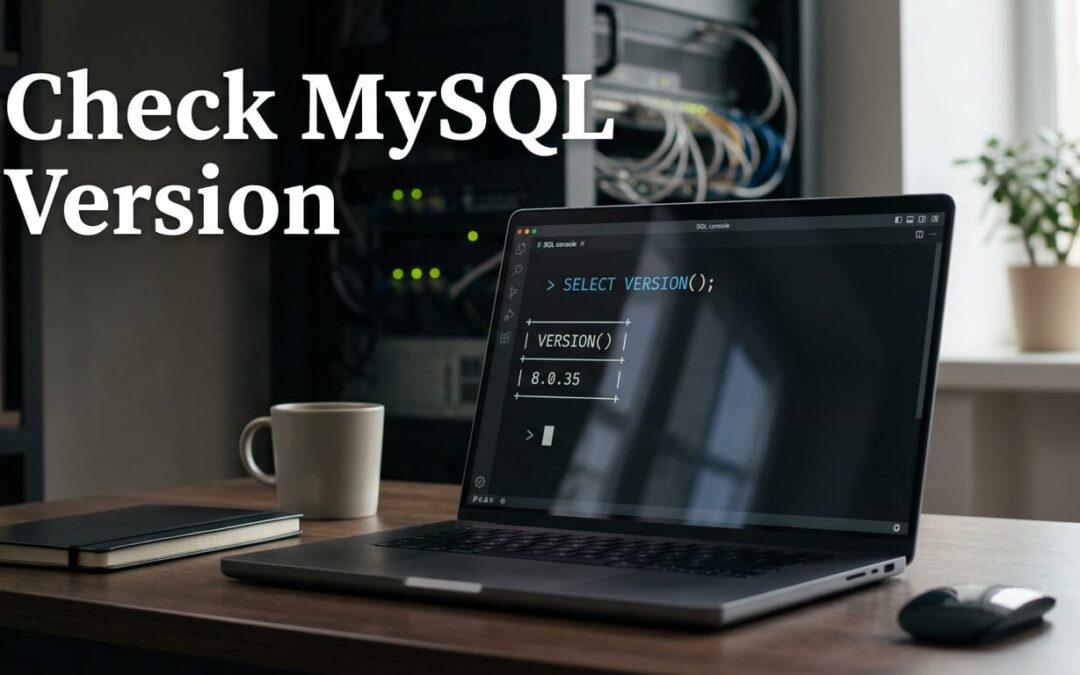
Before installing an app, check MySQL version details on the server the app will use. The quickest method is to connect to that database and run SELECT VERSION();.
A local command can show the version of your computer's MySQL client instead, which may not match the hosted database. Use the method that fits your setup, then compare the server version with the app's requirements.
Key takeaways
- Run
SELECT VERSION();in a connected SQL session to get the active server version. mysql --versionandmysql -Vshow the client utility version, not necessarily the database server's.- phpMyAdmin and MySQL Workbench can show server details without a terminal command.
- Check the app's stated database requirements before installation. A version number alone doesn't guarantee compatibility.
Check MySQL version inside a SQL session
If you can connect to the database, a SQL query gives you the most direct answer. Open a client such as MySQL shell, connect to the right server, and run a query at the prompt. To start a local authenticated session, run mysql -u root -p and enter your password.

Run the quick version query
Enter SELECT VERSION(); and press Enter. The server returns its version string, for example 5.7.22-standard. You can also run SELECT @@version;, which returns the same kind of value, such as 5.6.34-log.
These queries identify the server you're connected to, not the version of a separate MySQL client installed on your computer. MySQL's query instructions show how to enter SQL statements in the command-line client.
Get edition and platform details
For more context, run SHOW VARIABLES LIKE '%version%';. Along with version, the results can include version_comment, version_compile_machine, version_compile_os, and protocol_version.
version_comment can identify the edition, such as MySQL Community Edition, but it doesn't replace checking the release number against your app's requirements. The compile fields describe the platform the server was built for. See MySQL's reference for the SHOW VARIABLES statement.
Check the version from a command line
Terminal commands are convenient when you have SSH or local server access. Keep in mind that commands can report the version of a client program, a server program, or the running server.
See the client and server versions
On Windows, open Command Prompt and run mysql -V or mysql --version. These commands report the version of the mysql client utility. Linux and macOS terminals support the same uppercase -V and long-form options.
You may see output such as mysql Ver 8.0.xx for Linux on x86_64. The exact wording depends on the installed build. This is not proof that the remote database server is running that version.
Some instructions show lowercase mysql -v on Linux. That flag enables verbose client output, not version information. Use uppercase -V or --version to check the client version.
Check the server binary or connect to the server
If the server binary is installed on the machine, mysqld --version reports its version. mysqld --help also includes version information. These commands can fail if the binary isn't in your system path.
To query a running server, use mysqladmin version. If a password is required, run mysqladmin -u USER -p version and enter the database password when prompted. This returns server details, including its version. By contrast, mysqladmin -V reports the mysqladmin utility's version.
You can also log in with mysql -u root -p. The connection banner includes a Server version: line. Inside the client, type STATUS to see client and server versions, uptime, and connection information.
Find the version in phpMyAdmin or Workbench
A hosting control panel or graphical database tool may be faster than SSH, especially when your database is managed for you.
Use phpMyAdmin in your hosting panel
Open phpMyAdmin from your hosting account and look for Server Version in the Database Server area. On SiteGround, the path is Site Tools > Site > MySQL > phpMyAdmin. The layout can vary by host, but server information is usually shown on the tool's main screen.
For cPanel users, our guide shows how to create a MySQL database and user in cPanel. Use the interface carefully once connected. It can display and change live database data, so stick to the version details unless you intend to make a specific change.
Check MySQL Workbench
In MySQL Workbench, connect to the database, then open Administration > Management > Server Status. Read the version field in the server status view.
This is useful when you already use Workbench to manage a remote database. Make sure the connection is for the same database your app will use. A saved connection to a development server won't tell you the version of a separate production database.
Check installed packages or a Docker database
The right check depends on where the database runs. A hosting account, Linux server, and Docker container can each have different MySQL installations.
Check Debian or Ubuntu packages
On Debian or Ubuntu, run dpkg -l 'mysql-server*' to list installed MySQL server packages. To compare the installed and available package versions, run sudo apt-cache policy mysql-server.
The output includes Installed and Candidate fields. For example, a package version might appear as 8.0.29-0ubuntu0.20.04.3. Package records show what's installed through the system's package manager; if the app connects to another host, query that server directly instead.
Check a MySQL container
For a MySQL database in Docker, replace CONTAINER with the container name and run:
docker exec -it CONTAINER mysqld --version | awk '{print $3}' | cut -d'-' -f1
The pipeline extracts a bare version number from the server binary output. If the container uses a custom image or a different binary layout, the output may need a different parsing command. Running docker exec -it CONTAINER mysqld --version without the pipeline still shows the full binary version string.
Match the version to the app's requirements
Once you have the server version, compare it with the app's installation requirements. Check for a minimum supported MySQL version and notes about specific releases or database features. If the app connects through a hosting account, check that database's version, not just the one on your laptop.
Read the version number and suffix
A MySQL version generally contains a major, minor, and bug-fix number, followed by an optional suffix. For example, in 8.0.29, 8 is the major number, 0 is the minor number, and 29 is the bug-fix release.
Suffixes add release context. dmr means Development Milestone Release, while rc means Release Candidate. These labels indicate development or pre-release stages, so don't assume a larger-looking number is automatically the right choice for a live app.
Consider support as well as compatibility
MySQL 5.7 is an older release line. If an app or host still runs it, check the app's compatibility requirements and the database's support status. If the requirements specify MySQL Community Edition, verify that edition as well as the release. MySQL 8.4 is an LTS release. Oracle's MySQL release policy explains how LTS releases fit into its release model.
Oracle's MySQL announcement listed April 2026 as the scheduled end of life for MySQL 8.0. Its release announcement gives that date. As of November 2026, include the exact 8.0 release and your host's support policy in your compatibility decision.
Frequently asked questions
Is MySQL still used in 2026?
Yes. MySQL remains in active use for websites and applications. Before installing an app, check that its required MySQL release is supported by your hosting environment.
Does MySQL have a server?
Yes. MySQL uses a server to store and manage databases, while client programs connect to it. The server and client can run on the same machine or on separate systems.
Why does mysql --version differ from the database version?
It reports the version of the local mysql client utility. The database may be hosted elsewhere or run a different release. Use SELECT VERSION();, phpMyAdmin's server details, or mysqladmin version to check the connected server.
Can I check the server version without logging in?
You can inspect a local server binary with mysqld --version or check installed packages on Debian and Ubuntu. These checks don't confirm a remote database's version. To check a remote server, use a connected SQL client, phpMyAdmin, Workbench, or mysqladmin version. Connecting with the local client using mysql -u root -p still requires valid credentials.
Can PHP report the server version?
Legacy PHP code using mysql_get_server_info() can return the version from an existing connection, but PHP 7 removed the old mysql extension. Modern PHP code using MySQLi can get server information for a connection with mysqli_get_server_info($connection).
Check the database your app will actually use
The safest version check is the one made against the database your app will connect to. Run SELECT VERSION(); when you can, then match that result to the app's requirements and the server's support status.
If you're choosing a cPanel setup for a new site, ZADiC cPanel hosting starts at $4.99 per month. A compatible database, clear setup steps, and the right hosting environment give your app a much smoother start.