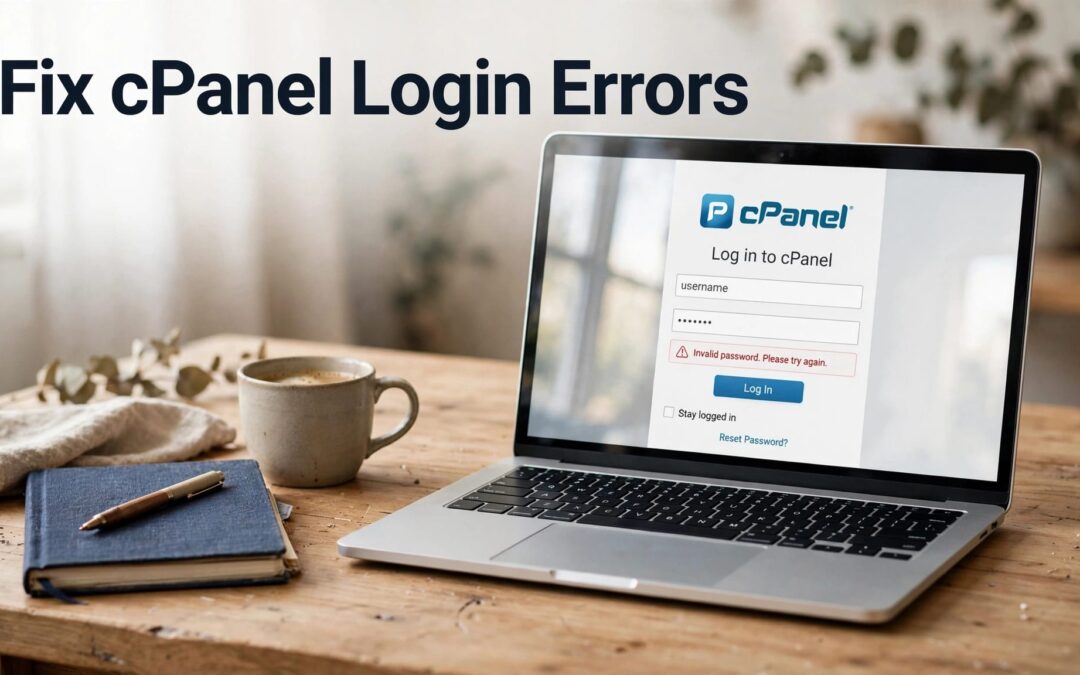
cPanel login errors usually come down to one of three things: incorrect account details, a connection problem, or a domain that isn't reaching the right hosting server. The fix depends on the exact message you see, so start by separating a rejected password from a page that won't load.
We'll walk through the common causes and the safest next step for each. You'll also learn why your cPanel, email, and WordPress sign-in details may not be interchangeable.
Match cPanel login errors to the problem
Before changing settings, note what happens when you try to sign in. Does the cPanel login page load and reject your details, or can your browser not reach it at all? Those symptoms point to different fixes.
The page loads, but your login is rejected
An "Invalid login" or similar message usually means the cPanel server received your sign-in attempt but didn't accept your cPanel username, other sign-in details, or security code. Check that you're using the cPanel account username, not your email address or WordPress administrator name.
Look for small, easy-to-miss problems: an extra space, a mistyped character, or outdated sign-in details saved by your browser. If you use a password manager, confirm it's filling the correct account entry.
The page won't load or times out
A blank page, connection reset, or "connection timed out" message is different. Your browser may be unable to reach the cPanel service because of a blocked port, a network issue, incorrect name resolution, or a server problem.
Try the secure login address and compare it with the domain-based address. If both fail, note the exact error and move on to connection and DNS checks.
Use the secure cPanel login address
For most cPanel accounts, the secure login page uses HTTPS on port 2083. The login instructions explain how to access an account using its domain or server IP address followed by that port.
If the domain-based address doesn't open the cPanel login page, try the server IP address supplied by your hosting provider with :2083 at the end. This can help distinguish a name resolution issue from a server connection issue. A port block can also prevent access even when the host is available.
Avoid signing in through an unsecured address. cPanel notes that credentials sent over port 2082 are not encrypted in transit. Its security guidance for cPanel and WHM recommends SSL or TLS to protect account access. When you're troubleshooting, stick with the HTTPS address.
If you've reached a login screen you don't recognize, stop before entering your sign-in details. Use a known hosting dashboard link or the secure server address your provider gave you. If the dashboard provides a cPanel proxy link, verify that it leads to the provider's secure sign-in service before entering details. Enter your sign-in details only on the real login page.
Fix an "Invalid login" message
A login rejection is frustrating, but a few careful checks often reveal what went wrong. Avoid repeated guesses. Too many failed attempts may trigger account or server security protections.
Check the account name and password
Confirm you're entering the cPanel username, not your domain name, email address, or WordPress login. Then enter your credentials manually once, checking caps lock and keyboard layout. If you recently changed your sign-in details, make sure your saved credentials aren't an older version.
If you can't remember your sign-in details, use the account's reset password option or contact your hosting provider. cPanel's account password reset instructions describe the reset process. If a reset email is sent to the contact address on file, check that mailbox and its spam folder.
Check the security code separately
If your account uses two-factor authentication, your sign-in details can be correct while the second code is not. Enter the code for the right cPanel account, and use the current code from your authenticator app. If the code is repeatedly rejected, don't keep guessing. Ask your hosting provider to help restore access.
Once you're back in, consider adding two-factor authentication to cPanel. It adds another step at sign-in, but it also protects your hosting account if someone gets hold of your account credentials.
Fix cPanel connection errors and timeouts
When the page itself won't open, check the connection path instead of changing your account details. Changing account details won't fix a blocked connection or an unavailable service.
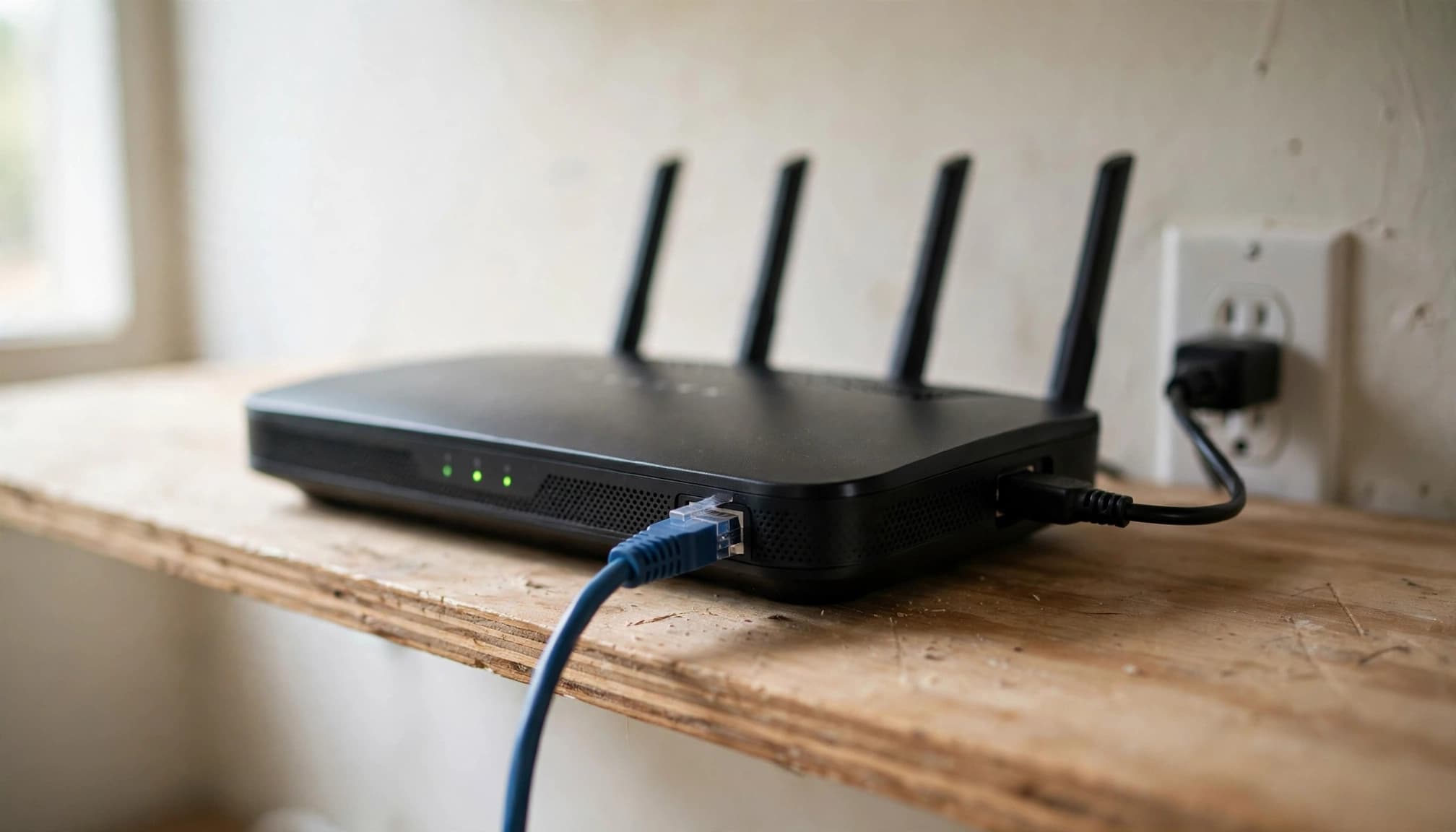
First, try another browser or network. If cPanel loads on a different connection, your original network, firewall, VPN, or a port block may be interfering. If the same timeout appears everywhere, the issue may be on the server side or with the route to it.
A "connection refused" message often means the server was reached but didn't accept the connection on that service. A timeout means the browser didn't get a response in time. These messages are clues, not a diagnosis by themselves.
Check whether your website and cPanel both fail. If the website works but cPanel doesn't, the issue may be limited to the control panel service or its access port. If both are unavailable, the domain's destination or hosting server may be involved.
A changing client address, such as a Dynamic IP, can affect a session. Ask your host whether Cookie IP validation is enabled and could be interrupting your login.
When you contact support, include the full error, such as "connection timed out," and the time it happened. Also share the login address you used and whether the IP-based address works.

Check whether DNS or Cloudflare is involved
If cPanel works through the server IP but not through your domain, check where the domain points. The root domain's A record should direct visitors to the hosting server's IP. The www record is often a CNAME pointing to the root domain. Our guide on how to point a domain to your hosting provider covers the basic routing choices.
Nameservers and routing records do different jobs. Nameservers identify which service manages a domain's name resolution, while A and CNAME records direct specific names to their destinations. If you've recently changed nameservers or records, the new settings may take time to appear across networks. DNS propagation has no exact timeline that applies to every change. See nameservers vs. DNS records explained if you're unsure which setting changed.
If the domain uses Cloudflare
A proxied DNS record can affect how traffic reaches a service. If your cPanel address uses a Cloudflare-proxied hostname and the panel fails to load, compare it with the direct server address from your hosting provider. This helps you see whether the problem is with the domain route or the cPanel service.
cPanel's guidance on Cloudflare proxying recommends proxying records that serve web traffic, not subdomains for services such as SMTP, FTP, or SSH. Keep service records configured for their intended use, and avoid changing unrelated zone records while troubleshooting.
Make sure you're using the right password
Your hosting account, email mailbox, and WordPress dashboard have separate sign-in details. Credentials that work in one place may not work in another.
cPanel and webmail access
Your cPanel credentials open the hosting control panel. A mailbox uses its own sign-in details. If webmail rejects them, changing your cPanel credentials may not fix the issue.
If you can access cPanel, open Email Accounts and manage the relevant mailbox there. cPanel's Manage Email Accounts instructions describe how to update an individual email account's sign-in details. Use the mailbox address and updated credentials to sign in to webmail.
WordPress has its own login
WordPress uses its own administrator account at your site's /wp-admin page. A WordPress login error doesn't mean your cPanel access is broken, and changing your cPanel credentials doesn't reset the WordPress password.
If you can sign in to cPanel but not WordPress, troubleshoot the WordPress account separately. Use WordPress's own recovery flow to reset your WordPress password. Changing a WordPress password updates the site account, not your cPanel access. If the problem affects only wp-admin, check whether a plugin is blocking the login. If you don't manage the site, ask its owner or an account holder with admin privileges for help.
Don't start editing database records in phpMyAdmin just to regain cPanel access. phpMyAdmin works with databases, and an unnecessary change there can affect a live site.
Know when to contact your hosting provider
Some cPanel errors require access to the hosting server, which account holders don't have. If the secure login address and server IP both fail, or you don't receive the account-recovery message, contact your hosting provider instead of making repeated changes.
Send the error message and the steps you've already tried. Mention whether the failure affects cPanel, webmail, WordPress, or all three. If the message says your IP address changed, say whether you use a Dynamic IP. Explain if your network or VPN changed during sign-in, and ask whether Cookie IP validation is involved. A hosting administrator can review account and server settings, including Cookie IP validation, which checks IP addresses for cookie-based sessions.
If you're choosing hosting or planning a move, a familiar control panel and responsive support can save time when access problems come up. ZADiC cPanel hosting starts at $4.99 per month and includes a cPanel dashboard. Explore ZADiC cPanel hosting plans to see the available options.
Key takeaways for fixing cPanel login errors
- If cPanel loads but rejects your credentials, confirm the username, password, and two-factor code.
- Use the secure HTTPS login on port
2083, not an unsecured address. - If the domain address fails but the server IP works, check routing records and proxy settings.
- Keep cPanel, mailbox, and WordPress sign-in details separate.
- When both the domain and IP-based login fail, give your hosting provider the exact error.
Frequently asked questions
Why does cPanel say "login invalid"?
Your username or credentials may be wrong, your browser may be filling outdated sign-in details, or the two-factor code may be invalid. Check the cPanel username and enter your current credentials and security code carefully. If you can't remember your sign-in details, use the account recovery process or contact your hosting provider.
What should I do if I can't access cPanel through the login page?
Try the secure login address using your server IP and port 2083. If that also fails, test another network and note the error. A timeout or refused connection needs different troubleshooting than rejected credentials, so share the exact message with hosting support.
How do I reset a webmail password from cPanel?
Sign in to cPanel, open Email Accounts, choose the mailbox, and update its sign-in details. Then use the new mailbox credentials in webmail. These are separate from your cPanel account credentials.
How long do nameserver changes take to restore cPanel access?
DNS changes don't take effect everywhere at the same moment. Timing varies across networks, so cPanel may become available at different times depending on where a request is made. If access still fails after the new DNS destination is in use, try the server IP address and contact your host if that also fails.
Get back into cPanel with the right fix
The fastest way to solve a cPanel login error is to match the symptom to the cause. Rejected account credentials call for an account check, while a timeout points toward the connection, DNS, or server.
Use the secure login address, keep each account's password straight, and ask your hosting provider for help when the server itself is involved. A clear error message and a few details about what you tried can get you moving again.