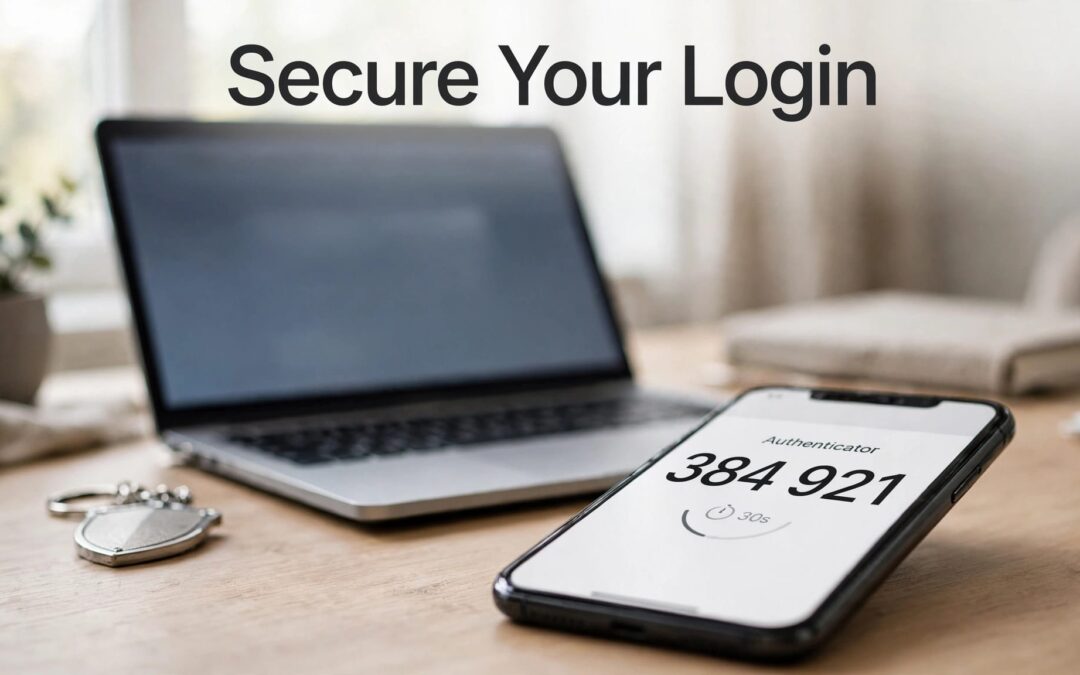
A sign-in secret alone can't protect your hosting account if someone steals or guesses it. Two-factor authentication for cPanel adds a second check: your sign-in secret plus a six-digit security code from the app.
Once it's enabled, you'll need access to the app each time you log in. The setup is straightforward, as long as your hosting provider has enabled the feature first. Let's get your account ready and walk through setup, recovery, and common login problems.
What cPanel two-factor authentication protects
Two-factor authentication, or 2FA, asks for two things at login: something you know, your cPanel password, and something you have, your phone with the app. The app generates a temporary six-digit security code. The credential by itself won't be enough to log in.
That extra step helps if a credential is reused, exposed, or entered on a fake login page. It also means the phone matters. If you lose access to the app, you can't complete the usual login until your hosting provider disables 2FA for your account.
cPanel 2FA protects access to cPanel. It doesn't replace good password habits or other account protections. We also recommend using a unique credential and limiting who can access the hosting account. For another cPanel security measure, see our guide to protecting phpMyAdmin access.
Check the hosting requirement before setup
Your hosting provider must enable 2FA in WHM before individual cPanel users can turn it on. The WHM path is Home > Security Center > Two-Factor Authentication. If you don't see the option in cPanel, your account may be on a server where the provider hasn't enabled it.
The cPanel WHM two-factor authentication documentation describes the server-side setting. If the feature is unavailable in your account, contact your hosting provider and ask them to enable cPanel 2FA in WHM.
Before starting, install an authenticator app, or smartphone app, that generates login codes. Choose a device you'll have with you when you log in, and keep the app available during setup so you can scan the QR code and enter a fresh code right away.
Choose an authenticator app for your devices
cPanel supports several authenticator options. Choose one that works on your device and stays accessible. The table lists the app and platform combinations available for cPanel setup.
| Authenticator app | Platform support |
|---|---|
| Google Authenticator | Android, iOS, BlackBerry, Windows Phone |
| Duo Mobile | Android, iOS |
| Microsoft Authenticator | Android, iOS, Windows Phone |
| GAuth Authenticator | Chrome extension |
Google Authenticator and Duo Mobile are recommended options for smartphones. Microsoft Authenticator is another choice, while GAuth works as a Chrome extension. You can use more than one option during setup, but you must add each one to the account configuration by scanning its own QR code or entering the same account details.
Google Authenticator and Duo Mobile
Google Authenticator and Duo Mobile both work on Android and iOS. With either option, scan the QR code shown in cPanel, then enter the generated six-digit code to confirm setup.
Duo Restore can help recover your account and download keys from Google Drive when the feature is enabled. It doesn't restore access to your cPanel account if you can't recover the app.
Microsoft Authenticator and GAuth
Microsoft Authenticator supports Android, iOS, and Windows Phone in the listed cPanel options. GAuth Authenticator is a Chrome extension for generating codes in a browser.
Each entry is tied to the cPanel configuration. If you reconfigure 2FA, old app entries stop generating valid codes. Update every app you plan to keep using when you replace the setup.
Set up cPanel 2FA step by step
Set up two-factor authentication inside cPanel. Keep your phone nearby, and don't close the page until the app confirms the account and configuration is complete.
Link the authenticator app
- Log in to cPanel and open the Security section.
- Click Two-Factor Authentication.
- Select Set Up Two-Factor Authentication.
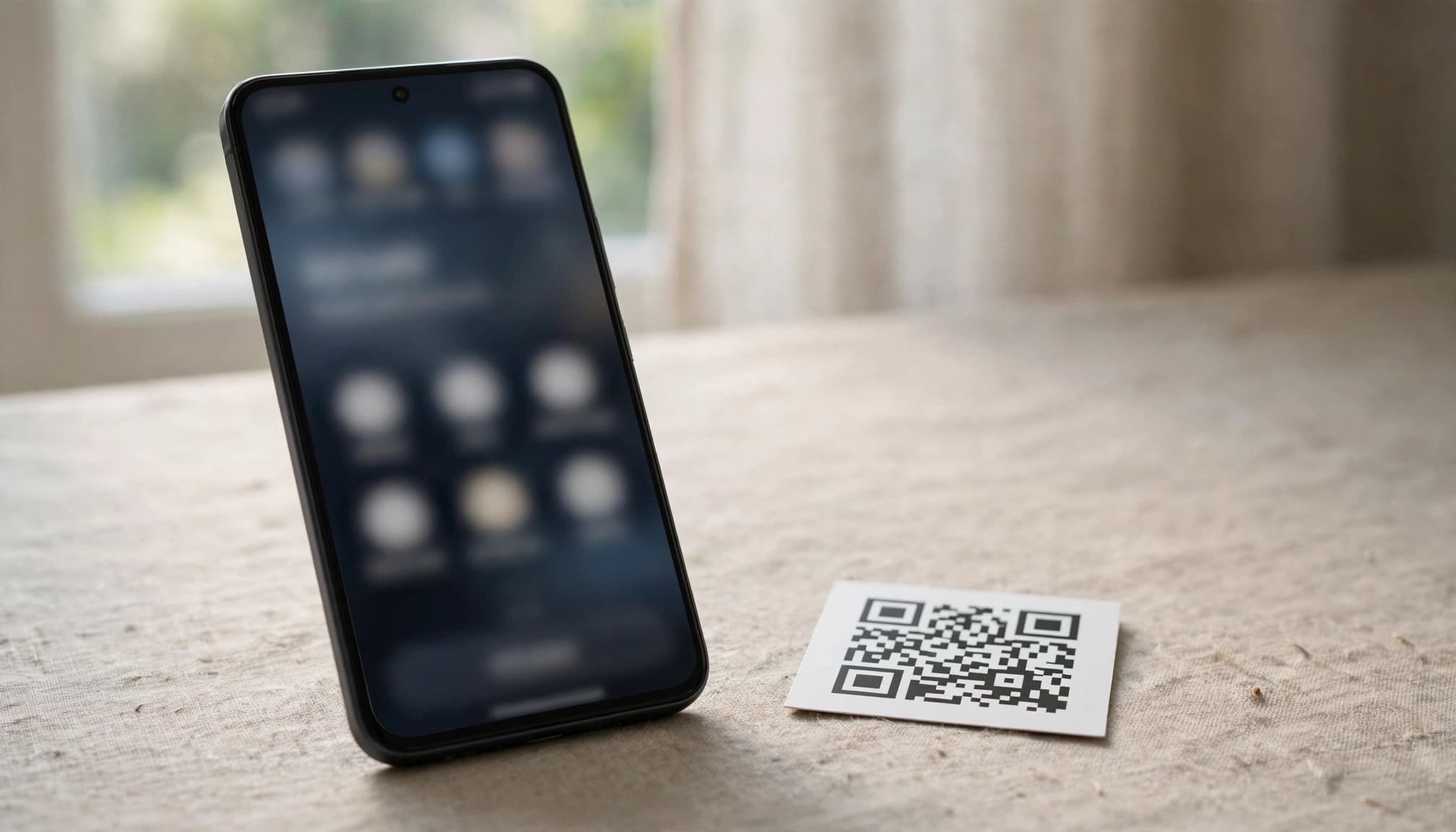
- Scan the displayed QR code with your authenticator app. If scanning isn't practical, enter the Account and Key manually.
- Confirm that a new cPanel entry appears in the app.
Confirm the code and finish
Time-based keys generate a new code every 30 seconds. The security code expires at the end of that interval, so enter it promptly in the Security Code text box, then click Configure Two-Factor Authentication.
If the code changes while you're entering it, wait for the next one and use that instead. Once cPanel accepts the code, two-factor authentication is active. Your next login will require both your password and a code from the app.
A QR code connects the app to your cPanel account. Treat it like a secret: don't share it or save an unprotected screenshot.
Reconfigure or remove 2FA carefully
You can replace a code generator setup or turn 2FA off from the same cPanel feature. These choices have different effects, so take a moment to choose the right one.
Reconfigure the authenticator
To reconfigure 2FA, click Reconfigure when you need to replace or rebuild the code generator setup. This overwrites the existing configuration. Codes from old app entries won't work afterward, and other cPanel browser windows will be logged out.
To avoid locking yourself out, keep the current app available until you scan the new QR code and confirm that a fresh code works. If you use more than one code generator, add the new configuration to each one before relying on it for login.
Remove two-factor authentication
Click Remove Two-Factor Authentication to disable the second step. After removal, your login credentials alone will let you access cPanel.
Removing 2FA may help if you're changing your setup or need to restore access, but it also removes the extra login protection. If you only need to replace an app, use Reconfigure rather than removing 2FA and leaving the account unprotected.
Fix invalid codes and recover access
A rejected code usually points to a timing or setup issue. Start with the simplest checks, then contact your hosting provider if cPanel reports a server-side problem.
When cPanel says the security code is invalid
If you see "Failed to set user configuration: The security code is invalid." during setup, the server's date and time may be incorrect. Your hosting provider must fix the server time issue.
If codes stop working after setup, check that you're using the entry for the correct cPanel account and that your phone's date and time are set automatically. Enter a new code as soon as it appears. If the problem continues, ask your provider to check the server's time synchronization.
Published instructions differ on how long a code remains valid. Namecheap says cPanel accepts a code for 60 seconds after generation, while Hosting.com advises entering it within 30 seconds. Time-based codes refresh every 30 seconds, so enter each code as soon as it appears.
If you lose your phone or app
You can't use the normal 2FA login flow without access to the code generator. Contact your hosting provider and ask them to disable 2FA on your cPanel account. After access is restored, set up 2FA again with an app you can access.
Duo Restore may recover Duo Mobile if the feature was enabled and the account's keys are available in Google Drive. If you can't restore the needed entry, ask your hosting provider to disable cPanel 2FA so you can configure it again.
Protect Webmail and API access separately
cPanel login protection doesn't automatically cover every service connected to your hosting account. Webmail has its own 2FA setting, and API authentication follows separate rules.
Turn on 2FA for Webmail
To configure Webmail 2FA, log in to the mail interface and open Two-Factor Authentication on its management screen. This setting is separate from cPanel's own login configuration. Enabling one doesn't automatically enable the other.
For setup steps, see cPanel's Webmail two-factor instructions. If you use Webmail regularly, protect this sign-in as well.
Use API tokens for integrations
API requests that use password authentication can bypass the 2FA challenge unless the hosting provider enables Security Policies for API requests in WHM. API tokens aren't affected by that policy and are the recommended method for integrations.
The cPanel API authentication guide explains the distinction. Use a token for an integration rather than sharing your cPanel credentials with a script or service.

Key takeaways for a safer cPanel login
- Your provider must enable 2FA in WHM before you can configure it in cPanel.
- Use the code-generating app to scan the QR code or enter the Account and Key, then confirm with a six-digit code.
- Reconfiguring invalidates old app entries and logs out other cPanel browser windows.
- If you lose access to the app, your hosting provider must disable 2FA so you can regain access.
- Mail access and API access have separate 2FA considerations.
For a second layer on your website itself, see our guide to WordPress two-factor authentication. Hosting access and website admin access are separate doors, and both deserve attention.
Frequently asked questions
What is a two-factor authentication code?
It's a temporary six-digit number generated by a code generator. You enter it after your cPanel sign-in credentials to prove you have access to the linked device.
Can I use Google Authenticator and Duo Mobile together?
Yes. You can add the cPanel configuration to more than one app by scanning the QR code or entering the Account and Key in each. If you reconfigure later, update every app you plan to keep using.
What happens to other cPanel browser windows during reconfiguration?
Clicking Reconfigure logs out other open cPanel browser windows. Sign in again with your cPanel credentials and the code from the newly configured app.
How do I change my cPanel password?
Use cPanel's Password & Security option to change it. New sign-in credentials don't replace or disable 2FA, so keep the app available for future logins.
Can I log in if I lose my phone?
You can't use the normal 2FA flow without access to the app. Contact your hosting provider to disable 2FA on your account, then set it up again when you regain access.
Keep your cPanel login protected
cPanel 2FA adds one clear step to your login, and that step can stop a stolen password from being enough. Set it up with the app you can access, and know how to recover before you need to.
Keep it unique, protect the app, and use API tokens for integrations. A few careful choices make hosting access easier to trust.