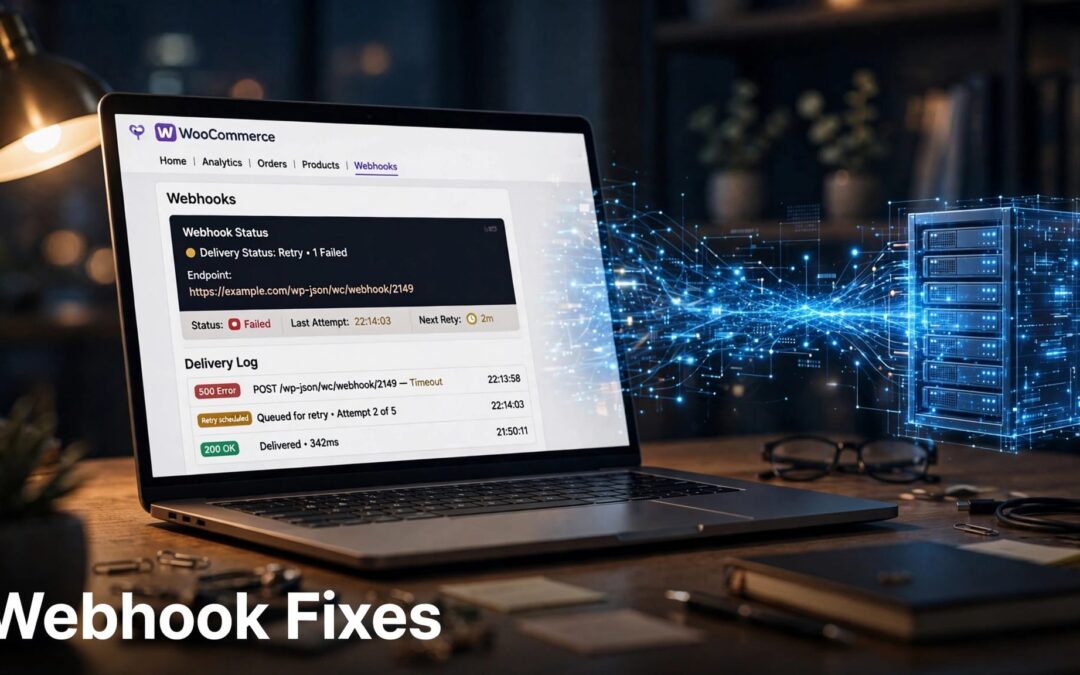
WooCommerce webhooks may stop firing because they're paused, disabled, set to the wrong event, or unable to reach the receiving service. The fastest fix is to follow the evidence: check the webhook status, match the event, and read the delivery log.
Your store and the connected service each have a part to play. A successful request doesn't always mean an order reached its final destination.
Start with the webhook settings, then follow the message across the connection.
Key Takeaways
- Check the webhook's status and topic before changing hosting or plugin settings.
- Use WooCommerce delivery logs to find the request and the receiving server's response.
- Fix the underlying error before reactivating a disabled webhook.
- Confirm the receiving application processed a test event, not just that it accepted the request.
- Review scheduled actions when a related extension uses background jobs, but don't assume cron caused the webhook problem.
How WooCommerce Webhooks Work
A webhook sends information to another service when a selected event happens in your store. An order update, for example, can trigger a message to a fulfillment system.

Each webhook has a topic, which identifies the event, and a delivery URL, which tells WooCommerce where to send the message. The receiving service then responds to the request.
WooCommerce also sends a ping when an active webhook is saved for the first time. That ping can help establish contact, but it doesn't prove the service processed an order event.
The useful distinction? An event must happen, the request must reach the destination, and the receiving application must handle it. A problem at any of those stages can make an integration look broken.
Check the Webhook Status and Event
Open your WordPress dashboard and go to WooCommerce > Settings > Advanced > Webhooks. Select the webhook connected to the service that's missing updates.
Take a moment to record its status, topic, and delivery URL before changing anything. Those details give you a starting point if you need help later.
Look for a paused or disabled webhook
An active webhook can send deliveries. A paused webhook stops sending until you reactivate it. A disabled webhook has stopped because of delivery failures.
By default, WooCommerce disables a webhook after more than five consecutive failed deliveries. Repeatedly switching it back on won't repair the receiving server or a bad URL. Find the failure first, fix it, and then restore the webhook to Active.
Match the topic to the action
Make sure the selected topic matches the event you're testing. Creating an order and updating an existing order are different actions. If your webhook listens for an order update, creating an order alone isn't a reliable test of that topic.
Open the affected order and compare its activity with the webhook's settings. If a payment gateway or extension controls the integration, its own settings may also determine which events are used.
Read the WooCommerce Webhook Delivery Log
The delivery log is your best clue when a webhook appears active but the connected service receives nothing. It can show the event, request details, and response from the destination.
Go to WooCommerce > Status > Logs and filter All sources for webhooks-delivery. Open the log that matches the time of the missing event. WooCommerce's webhook documentation covers the settings and delivery logs in more detail.
Find the matching attempt
Use the order ID, event time, and webhook topic to narrow your search. Compare the entry with the receiving application's records for the same period.
If you find no matching attempt, return to the webhook status and topic. Also confirm the expected event took place. An empty result doesn't automatically mean your server blocked the request.
Protect the details you collect
Logs can contain customer information and other sensitive request data. Share only what's needed, and remove secrets, tokens, and personal details before sending an excerpt to support.
Keep the timestamp, response code, affected order ID, and error message. That gives the person helping you a trail without handing over more data than necessary.
Make Sense of the Response Code
A response code tells you what happened when WooCommerce contacted the destination. It helps you choose the next step instead of changing settings at random.
| Response | What to investigate |
|---|---|
2xx | The destination accepted the request. Check whether its application processed the event. |
301 or 302 | WooCommerce treats the redirect as successful. Review whether the configured URL is the intended endpoint. |
401 or 403 | Look at access controls, authentication, or security rules on the receiving side. |
404 | Check the delivery URL and the receiving application's route. |
5xx | Investigate the receiving server or application error. |
WooCommerce counts 2xx, 301, and 302 responses as successful deliveries. Other response codes count as failures.
A successful response is good news, but it's only part of the story. If the fulfillment system accepts the request and then rejects the order internally, you'll need its application logs to find out why.
Fix the Delivery URL and Secret
A small mismatch can interrupt the whole connection. Before touching server settings, compare the webhook's delivery URL and secret with the configuration used by the receiving service.
Check where the message goes
A delivery URL points to the service that receives the webhook. Look for a changed domain, an outdated path, or a test endpoint left in a live store.
The receiving endpoint needs to accept the request rather than present a login page or block it through a security rule. If the service has moved, update the URL in WooCommerce and save it before testing again.
Don't turn off your entire firewall to solve one blocked request. Use the response and security logs to identify the rule involved, then make the narrowest appropriate change.
Keep the shared secret consistent
WooCommerce uses the webhook secret to generate a hash included in the request headers. The receiving application can use that information to check the request.
If the receiving service expects a different secret, it may reject the delivery. Update the settings on both sides so they match, and keep the value private. If the WooCommerce secret field is blank, WooCommerce defaults to the current API user's consumer secret.
Check Related Background Tasks When Needed
Some WooCommerce extensions use scheduled jobs for work connected to orders, subscriptions, or fulfillment. If the webhook log doesn't explain the missing update, check whether the affected extension has a related job.
Open WooCommerce > Status > Scheduled Actions. Search for the affected order or subscription, then inspect the matching action's hook name, scheduled date, arguments, and log.
Repeated failures tied to the same extension deserve attention. A single old failed action doesn't automatically explain today's webhook problem, so match the timestamps before drawing a conclusion.
Review WordPress scheduling separately
WP-Cron handles scheduled work in WordPress. If jobs are waiting or failing, check Tools > Site Health for warnings and review recent security or caching changes.
WordPress includes a Site Health loopback test, which checks whether the site can make certain requests to itself. A loopback warning is useful evidence for a scheduling investigation, but it doesn't prove that an outbound webhook failed.
Our guide to WordPress cron troubleshooting can help you investigate missed scheduled tasks without treating every webhook issue as a cron issue.
Follow the security trail
If background jobs show signs of blocked requests, review firewall and bot-protection events around the same time. Cloudflare settings, security plugins, and server rules are worth investigating when their logs point to a block.
Give your hosting support team the failed hook name and timestamp. If the issue involves scheduled work, ask them to review requests to wp-cron.php.
Restore Delivery and Test the Full Workflow
Once you've found the cause, make one targeted change at a time. That makes the result easier to understand and easier to undo.
Save a backup before changing plugins, database settings, or other parts of your store. Use a staging site for plugin or theme conflict checks when possible, especially if customers are actively checking out.
Then follow the event through:
- Set the corrected webhook to Active and save it.
- Trigger the event that matches its topic using a controlled test.
- Open the delivery log and find the new attempt.
- Check the response, then confirm the receiving application processed the event.
- Review the connected order or fulfillment record for the expected result.
Be careful with tests that can create real charges, shipments, or duplicate records. A safe test should give you useful evidence without surprising a customer.
If the original event was missed, don't assume reactivation will recreate it. Review the affected records and use the receiving service's supported recovery process where needed.
Choose Hosting That Fits Your Store
Hosting matters when your store needs dependable resources and a support team that can help investigate server-side errors. It won't correct a mistyped delivery URL or a mismatched secret, but it gives your WooCommerce site a foundation for checkout and background work.
At ZADiC, our WordPress hosting starts at $9.99 per month, and cPanel hosting starts at $4.99 per month. We also offer Web Hosting Plus and VPS options for projects that need a different fit.
If repeated resource errors appear alongside store problems, bring the timestamps and logs to our team. Our look at website uptime and hosting covers how the right hosting setup supports a store as it grows.
Frequently Asked Questions
Why is an active webhook not sending anything?
The selected event may not have happened, or the topic may not match the action you're testing. Check the delivery log for an attempt before assuming there's a connection failure.
Does a successful webhook response mean the order was processed?
No. A successful response means WooCommerce received a response it treats as a successful delivery. Check the receiving application's records to confirm it handled the order as expected.
Should a disabled webhook be turned back on?
Yes, after you fix the cause of its failed deliveries. Reactivating it without correcting the error can lead to another round of failures.
Get Your Store Talking Again
A missing webhook becomes much easier to fix when you separate the event, delivery, and receiving application. Start with the status and log, then follow the response to the right fix.
Need a hosting setup that fits your WooCommerce store? Talk to our ZADiC team about your workload and the support you need.