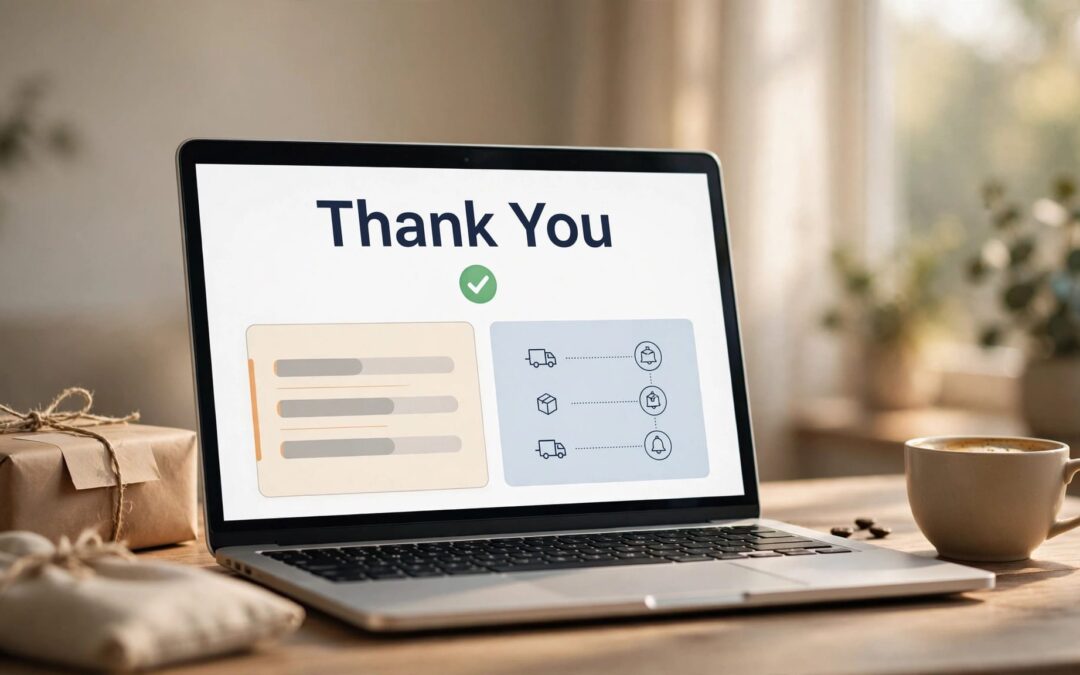
A customized WooCommerce thank you page gives customers a clear receipt, useful next steps, and a reason to feel good about their purchase. You can make changes with the WordPress Site Editor, an extension, or custom development, depending on your store's setup.
The goal is clarity first. A branded design is welcome, but shoppers should never have to hunt for their order details or wonder what happens next.
Let's start with the page your customers see after checkout.
What a WooCommerce Thank You Page Should Do
The thank you page appears at the end of checkout, when your customer wants reassurance that their order went through. WooCommerce calls this the Order Confirmation page, and it can display the order number, items, totals, and other relevant details.

A helpful page answers three questions: What did I order? What happens next? Who can help if something looks wrong?
For a physical product, that might mean a short note about your fulfillment process and a link to your support page. For a downloadable product, the important next step may be access to the customer's files when the order qualifies.
Keep the message tied to the order's actual status. An order can be received while payment is still pending, so avoid a blanket statement that every payment has cleared. We recommend keeping order information easy to spot before adding offers, videos, or social links.
Find the Right Editing Route for Your Store
Your customization options depend on the theme and checkout setup you're using. Start there, and you'll avoid searching for an editor your store doesn't have.
Block Themes and the Order Confirmation Template
If you use a block theme, WooCommerce provides an Order Confirmation template in the WordPress Site Editor. It contains sections for the order status, items, totals, applicable downloads, and customer details.
The block-based confirmation became the default for new installations beginning with WooCommerce 8.3. Stores that updated from an earlier version kept their existing checkout experience. That means two stores running WooCommerce can still have different confirmation layouts.
Classic Checkout and Existing Customizations
A classic checkout uses the WooCommerce checkout shortcode. Its confirmation output may depend on your theme, extensions, or custom code rather than the block theme's editable template.
Open your checkout page in WordPress and look at the content. If you see the checkout shortcode, take the classic route when planning changes. Don't switch checkout formats just to follow a design tutorial. A layout change can affect the extensions and payment flow your store already relies on.
Edit the Order Confirmation Template
For a block theme, the Site Editor is a straightforward place to make visual changes. Take a restorable backup first, and use a staging copy when your store has custom checkout features.
WooCommerce's Order Confirmation template documentation describes the available blocks and editing options. Here's where to begin:
- In your WordPress dashboard, open Appearance > Editor.
- Select Templates, then find Order Confirmation in the WooCommerce templates.
- Open the template and use List View to see its groups and blocks.
- Adjust the layout, add your store's message, and save your changes.
- Place a test order to see the finished page with real order details.
Start with a short thank-you message near the top. Then keep the order summary and next steps within easy reach. Your brand colors and logo can help the page feel familiar, but the receipt should remain the main event.
If you collect extra information during checkout, the template can also include additional checkout fields. Our guide to customizing WooCommerce checkout fields covers the different ways to collect that information.
One detail matters here: the editor preview isn't a substitute for a purchase. Order blocks need actual order data, so finish with a test checkout and look at the page as a customer would.
Choose an Extension or Developer for More Control
The Site Editor is useful for layout and content. Some stores need a different experience, such as a dedicated confirmation page managed through an extension or custom logic tied to an order.
Use an Extension for a Custom Page
WooCommerce's Custom Thank You Pages documentation describes an extension that lets you set custom confirmation pages. Its settings belong to that extension, so don't expect the same controls in every WooCommerce installation.
Before installing any tool, decide what you need it to do. If your goal is a branded message and a support link, your existing template may be enough. If you need a separate page experience, an extension can give you more control without editing theme files.
Keep the order receipt and customer-specific information accessible in the finished flow. A beautiful page that hides the order details leaves shoppers with more questions than answers.
Use Developer Work for Custom Logic
Custom development can help when your page needs to respond to information or conditions that your existing tools don't handle. It also gives a developer room to work with the store's theme and existing extensions.
Ask for changes that can be maintained when WooCommerce or the theme updates. Test them on staging, document what was changed, and keep a restorable backup. That gives you a practical way back if an update affects the confirmation page.
Build a Useful Post-Purchase Experience
A good confirmation page gives customers confidence first, then offers a helpful next step. Keep the layout focused so that both jobs get done.
Explain What Happens Next
Tell customers what your store can deliver. For a shipped order, explain the next fulfillment step and where updates will arrive. For a digital order, point customers toward available downloads and support if they have trouble opening a file.

Use a delivery timeframe only when your operations can support it. If payment is pending, explain the next step without presenting the order as paid. Clear language saves your team from answering the same questions later.
A support link also belongs within reach. Customers who spot an address mistake or have a question about their purchase should know where to go.
Add One Relevant Offer
Once the receipt is clear, a related product can give the customer a useful next step. A store selling coffee equipment might show filters that fit a brewer. Keep the suggestion below the order details and make the price and destination clear.
A post-purchase promotion isn't automatically a one-click purchase. The customer may need to visit another product page and complete another checkout.
If recommendations don't appear where you expect them, our guide to troubleshooting WooCommerce related products can help you identify the display issue.
Match the Page With Your Order Emails
The confirmation page and order emails are separate parts of the customer journey. One appears after checkout. The other reaches the customer's inbox when a configured notification is sent.
Keep their messages consistent. If your page says the order is being prepared, the corresponding email shouldn't promise that it has already shipped. For an on-hold order, explain any payment action or review that applies instead of using the same message as a completed order.
You can edit existing notifications under WooCommerce > Settings > Emails. Select a notification, choose Manage, and update the available subject, heading, or additional content.
Changing an email's design doesn't create a new status-based notification. Custom triggers may need an extension or developer work. Our walkthrough on how to customize WooCommerce order emails covers the distinction and the built-in settings.
Then send a test through the full order flow. A good-looking preview doesn't tell you whether the right message was delivered at the right time.
Test the Complete Checkout Journey
Your page may look polished in the editor and still miss something important during checkout. Test the whole path before you publish changes to a live store.
Test Orders, Payments, and Customer Views
Use a staging store and your payment gateway's test mode when possible. Place an order as a guest if guest checkout is enabled, then test an account purchase too. Try a physical product and a downloadable product if you sell both.
Look for the order number, correct items, totals, and applicable download links. Read the message on a phone as well as a desktop. Buttons should be easy to tap, and order details should remain visible without scrolling past a long promotion.
Test a pending payment flow if your store offers one. The page should describe that state accurately instead of suggesting that funds have cleared.
Troubleshoot Without Risking Live Orders
If the page is blank, redirects unexpectedly, or shows the wrong details, start with the affected order in WooCommerce > Orders. Order notes can help you understand what happened during payment.
On staging, disable nonessential extensions one at a time and repeat the same test. Checkout field tools, page builders, and caching plugins can all affect the experience. Review browser errors or server logs if the problem persists, and keep any customer information in those logs secure.
Don't retry, cancel, or refund a real payment until you know whether the gateway captured the money. A missing confirmation page alone doesn't tell you that payment failed.
Give Your Store a Reliable Hosting Foundation
A customized page depends on the checkout behind it. Your hosting should give your WooCommerce store room to handle traffic, updates, and the tools you need to run it.
At ZADiC Web Hosting, we offer WordPress hosting and Web Hosting Plus for stores that need more capacity. Our Web Hosting Plus plans range from $30.99 to $99.99 per month, with 24/7 customer support available when you need help.
Choose a plan that fits your traffic and extensions. A smaller store may have different needs than a busy catalog with several payment and marketing integrations.
Keep customer-specific pages, including checkout and account areas, out of shared full-page caching. Test the order confirmation experience whenever you change caching settings. Your host provides the foundation, while your store settings and extensions control what customers see.
Make the Confirmation Count
Your WooCommerce thank you page should leave customers with a clear order record and a clear next step. Start with the template your store already uses, then add extra tools only when they solve a real need.
Keep the message accurate, test the full purchase journey, and give the page a dependable hosting foundation. When checkout ends with confidence, your customer knows exactly where they stand.