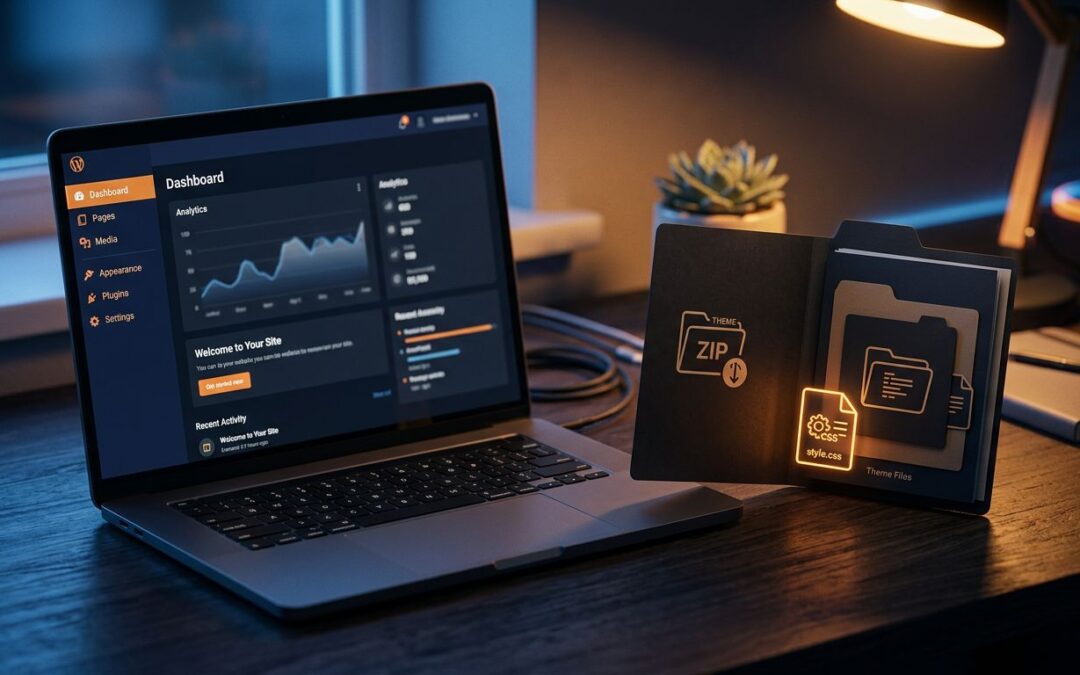
A theme upload can stop cold with one blunt message: “The package could not be installed. The theme is missing the style.css stylesheet.” The WordPress missing stylesheet error looks technical, but it usually comes down to one simple issue, you uploaded the wrong ZIP file.
Your site isn’t broken. Your hosting probably isn’t broken either. WordPress simply can’t find the file that tells it, “Yes, this is a theme.”
Let’s get the right package in place and get your new design live.
What the error is actually telling you
WordPress needs a theme’s main stylesheet, named style.css, to identify and load that theme. It is more than a file full of colors and fonts. Its header tells WordPress the theme’s name, version, author, and other basic details.
When you upload a ZIP through Appearance > Themes, WordPress unpacks it and looks for that file in the right location. If it can’t find it, the installation stops.
WordPress is checking the ZIP structure
A valid theme package should open to one main theme folder. Inside that folder, style.css should be easy to find.
Most themes also include folders and files such as:
functions.phptemplatesassetstheme.json- Screenshot images and language files
The exact file mix changes between classic and block themes. Still, the stylesheet must be where WordPress expects it. The WordPress theme file structure explains how theme folders and required files fit together.
If
style.cssis buried inside a second folder or a separate ZIP file, WordPress has no usable theme package to install.
Your host usually isn’t the cause
We’ve seen people clear caches, change PHP versions, and deactivate plugins after this message appears. Those steps won’t fix a bad theme archive.
The WordPress missing stylesheet error happens during the upload check. It isn’t a speed issue, a database issue, or a sign that your website has been hacked. Start with the file you selected. That is almost always where the fix is.
How to fix the WordPress missing stylesheet error
The fastest fix is to locate the installable theme ZIP. Marketplace downloads often include more than the theme itself. You may receive documentation, licensing files, sample content, PSD files, child themes, and plugins in one large download.
That full bundle is useful to keep. It is not the file you upload through WordPress.
Find the installable theme ZIP
Download folders from ThemeForest, Envato Elements, and independent theme shops often have two choices:
- “All files and documentation”
- “Installable WordPress file only”
Choose the installable WordPress file when it is available. Envato confirms in its stylesheet error support guide that uploading the wrong download package causes this exact problem.
If you already have the larger download, unzip it on your computer. Look for another ZIP named after the theme. That inner ZIP is often the one WordPress needs.
For example, an outer download might contain a documentation folder, license text, demo content, and theme-name.zip. Upload theme-name.zip, not the outer package.
Check the folder before trying again
Open the ZIP you plan to upload. The first theme folder inside should contain style.css.
A clean layout looks like this in plain terms: theme-name first, then style.css, functions.php, and theme folders inside it. A problem layout adds extra layers, such as download-folder > documentation > theme-name > style.css.
If the stylesheet sits inside an extra folder, extract the package. Find the actual theme folder, then compress that folder into a new ZIP. Do not compress the whole download directory.
Also check the file name. It must be style.css, all lowercase. A file named style.CSS, stylesheet.css, or style.css.txt won’t pass WordPress’ theme check.
Upload the corrected theme package
Once you have the right ZIP, installing it takes less than a minute. No file editing required.
Use the Theme screen in WordPress
Follow this order:
- Sign in to your WordPress dashboard.
- Go to Appearance > Themes > Add New.
- Select Upload Theme and choose the installable ZIP.
- Click Install Now, then activate the theme after WordPress confirms the installation.
WordPress documents the same theme upload process for ZIP-based theme installs.
If the upload works but the website looks different than the demo, don’t panic. Many premium themes need a separate demo-content import or companion plugin. That is a setup step, not a stylesheet error.
Don’t upload a plugin as a theme
This mix-up is common with page builders, sliders, security tools, and theme add-ons. A plugin ZIP belongs under Plugins > Add New, not Appearance > Themes.
A premium theme may include both a theme ZIP and a required plugin ZIP. Install the theme first through the Themes screen. Then install its required plugins through the Plugins screen or the theme’s setup wizard.
Most WordPress missing stylesheet error reports come from one of these two mistakes: a full download bundle or a plugin archive uploaded as a theme.
Fix a child theme with the right headers
Child themes need a little extra care. They let you customize a parent theme without losing changes when the parent updates. Smart move, but only when the child theme points to its parent correctly.
Every child theme needs its own style.css
A child theme requires a style.css file in its own folder. That stylesheet needs a theme name and a Template field.
The Template value must match the parent theme’s folder name, not its display name. For example, an Astra child theme normally uses Template: astra because the parent theme folder is named astra.
The official WordPress child theme guidance calls style.css the one file a child theme must have. One missing line can stop the installation.
Install the parent theme first
WordPress can’t run a child theme without its parent. Install and keep the parent theme in Appearance > Themes before uploading the child theme.
Then check these three items:
- The child theme folder contains
style.css. - The
Templatevalue matches the parent folder name exactly. - The parent theme is installed, even if it isn’t active.
Avoid the old habit of importing a parent stylesheet with @import unless the theme developer tells you to use it. Modern child themes usually load parent styles through functions.php. If you bought the child theme, use the developer’s current installation instructions rather than an old forum snippet.
Use cPanel when the dashboard upload fails
Sometimes the correct ZIP still won’t upload because of a server upload limit, a timeout, or a sluggish dashboard session. In that case, cPanel File Manager gives you a direct route.
Install the theme through File Manager
Before changing files on a live site, make a backup or create a restore point. Then follow these steps:
- Open File Manager in cPanel.
- Go to
public_html/wp-content/themes/. If WordPress is in a subfolder, open that site’s matchingwp-content/themes/directory. - Upload the installable theme ZIP.
- Extract it and confirm the path ends with
themes/theme-name/style.css. - Return to Appearance > Themes in WordPress and activate the new theme.
The final path matters. If it ends with themes/theme-name/theme-name/style.css, the theme is nested too deeply. Move the inner folder up one level, then refresh the Themes page.
We recommend easy-to-manage cPanel web hosting for site owners who want access to files when WordPress is unavailable. It turns a stressful dead end into a fix you can handle in minutes.
Check the download if activation still fails
If the theme installs but won’t activate, download a fresh copy from the original seller. A partial or damaged ZIP can unpack without installing cleanly.
Also check the theme’s current PHP and WordPress requirements. A theme that needs a newer PHP version may install but throw a different error when activated. Keep the original error message and take a screenshot before contacting the seller or host. Clear details get a faster answer.
Never delete your active live theme as a quick test. Keep a backup and a default WordPress theme available first.
Prevent theme problems before they interrupt business
A working website needs boring reliability. That means using a simple process before each theme change, not crossing your fingers after the upload button is pressed.
Test major theme changes off the live site
Use a staging site when you are changing themes, importing demos, or installing a child theme. You can check menus, forms, mobile pages, and plugins without putting your public site at risk.
Keep the original installable ZIP in a clearly labeled folder. Save the purchase receipt, license key, and setup notes with it. When an update arrives months later, you won’t have to guess which file belongs where.
Avoid nulled or pirated themes. They often arrive with altered files, outdated code, or malware. A low upfront price can become an expensive cleanup job.
Choose hosting built for easy recovery
A host can’t fix an incorrect ZIP file. It can make every other part of recovery easier.
For business websites, we recommend managed WordPress hosting when you want backups, updates, security checks, and real support without the usual server chores. If a theme test goes sideways, a recent backup and a one-click restore can save hours.
Good hosting also gives you room to build. Faster pages, SSL protection, file access, and support all matter when your website is part of how you sell. Fix the file today, then give the site a stronger foundation for tomorrow.
A clean ZIP solves the problem
The WordPress missing stylesheet error is usually not a major repair. It is WordPress telling you that the ZIP does not contain a usable theme in the right place.
Find the installable theme archive, check that style.css sits in the main theme folder, and upload it through the proper screen. For child themes, match the parent folder name exactly.
A theme installation should be quick, predictable, and low-stress. With the right file and reliable hosting behind you, it can be.