

A single line in robots.txt can hide an important page from search engine crawlers. That sounds small, but one wrong rule can affect your posts, product pages, images, CSS, and JavaScript.
We do not need a complicated file to guide crawlers. We need a short, careful set of WordPress robots.txt settings that blocks low-value areas while leaving valuable content open. Let’s start with the rules that protect crawlability instead of putting it at risk.
Key Takeaways
- Use robots.txt to manage crawling, not to remove pages from Google’s index.
- Keep important posts, pages, product URLs, images, CSS, and JavaScript crawlable.
- Block private administration paths and obvious duplicate URL patterns only when needed.
- Add the correct XML sitemap URL to help crawlers discover your content.
- Test every change in Google Search Console before it creates a ranking problem.
- Optimizing your file structure is essential for maintaining long-term search engine visibility.
Start With What You Want Search Engines to Crawl
The first question isn’t “What should we block?” It’s “Which pages should search engines reach?”
For most WordPress websites, the answer includes your homepage, blog posts, service pages, landing pages, product pages, category pages, images, stylesheets, and scripts. These URLs help search engines understand your site and display it correctly in search results.
The robots.txt file sits at the root directory of your domain. Visitors and crawlers can usually find it at https://example.com/robots.txt. WordPress can generate a virtual robots.txt automatically, or your hosting account may serve a physical robots.txt file from the website’s root directory.
Robots.txt controls crawling, not indexing. A Disallow rule tells a compliant crawler not to request a URL. It does not guarantee that the URL will disappear from search results, as it is important to distinguish between crawling and indexing. Google may still learn about a blocked page through links pointing to it.
That difference matters. If we want a page removed from Google’s index, we should use a noindex tag or an X-Robots-Tag HTTP header. The crawler must be allowed to access the page before it can read that instruction.
Google’s official robots.txt guide covers the file’s basic behavior, syntax, and limits. We should keep those limits in mind before treating robots.txt as a security tool. It isn’t one. Private content needs passwords, access controls, or server-level protection.
A good WordPress file is more like a signpost than a locked gate. It points crawlers away from backend clutter while keeping the road to valuable content open.
Build a Safe WordPress Robots.txt Baseline
For many business websites, a simple file configuration is sufficient. We can begin by defining a general crawler group and restricting access to the WordPress admin area:
User-agent: *(The user-agent token targets all bots)Disallow: /wp-admin/(The disallow directive restricts access to the wp-admin directory)Allow: /wp-admin/admin-ajax.php(The allow directive ensures essential scripts remain crawlable)Sitemap: https://example.com/wp-sitemap.xml
The User-agent: * line applies these rules to all compliant bots. By using the disallow directive to block the wp-admin directory, we ensure that private dashboard screens remain hidden from search results.
The allow directive for the admin-ajax.php file is critical because many WordPress themes and plugins rely on this path to load dynamic content or process requests correctly. Without access to admin-ajax.php, your site may experience rendering issues.
The sitemap line should point to the correct XML sitemap location for your site. While WordPress core generates a default index, popular tools like the Yoast SEO plugin, Rank Math, or AIOSEO may create custom sitemap paths such as /sitemap_index.xml. Always verify the link in your browser before updating your file.
If a plugin manages these settings, editing the file directly in cPanel might not override the database-driven rules. You should always check the live version of your robots.txt to confirm that your changes are actually being served to search engines.
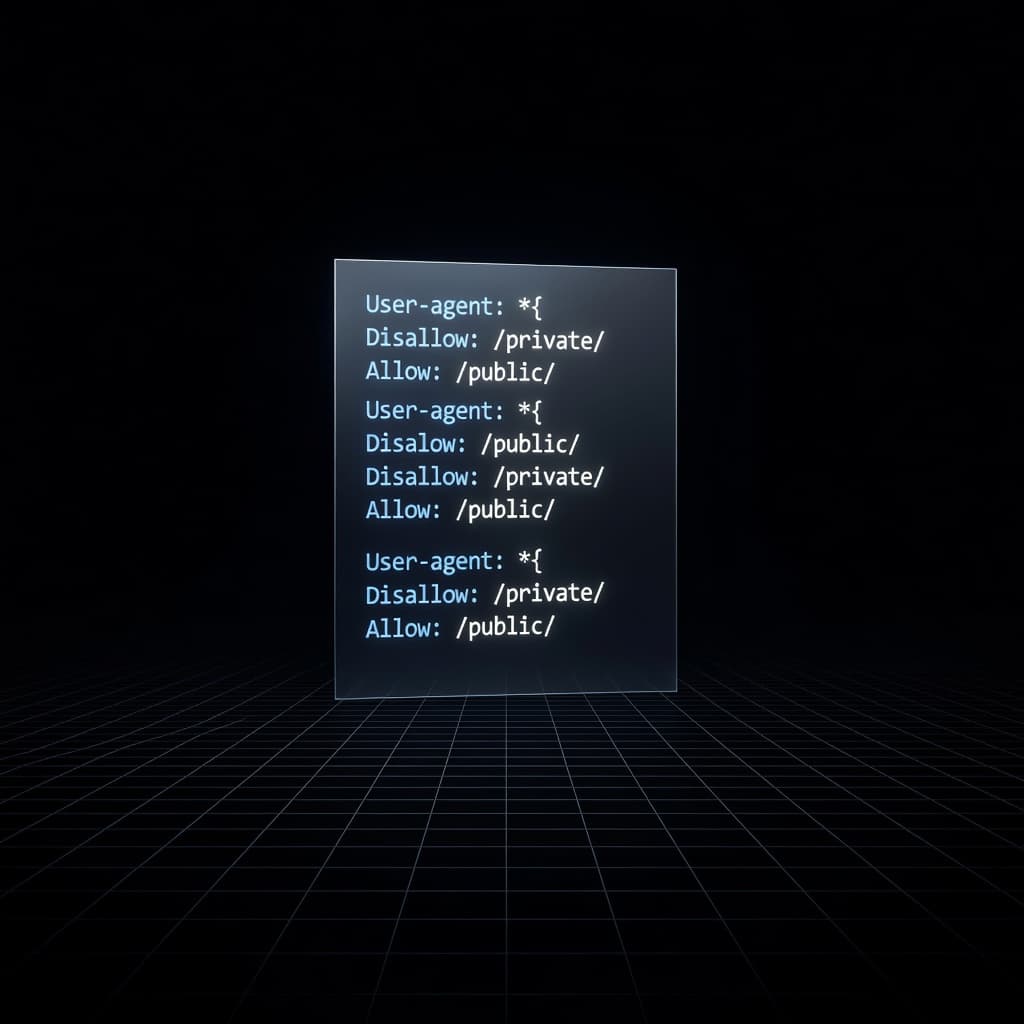
While specific site needs may require extra rules, you should avoid copying long, generic templates without verifying each path. A file that inadvertently blocks the /wp-content/ directory could prevent Google from indexing your images, CSS, or JavaScript, which are essential for rendering your pages.
A minimal approach is almost always safer. Only add specific directives when you have a clear reason to do so, rather than following a checklist that may include unnecessary or outdated instructions for your specific setup.
Avoid Rules That Hide Valuable Content
The most damaging robots.txt mistakes often appear efficient at first glance. We might block a broad folder, a specific query pattern using wildcard characters, or even the entire site. Then, an important page stops appearing in search results as expected.
Never use a disallow directive like Disallow: / on a live business website unless you intentionally want to block every crawler. This rule covers the full domain and can lead to accidental site-wide blocking. It belongs on a private staging environment, not on a public store or service site.
We also need to be careful with these common paths:
- /wp-content/ can contain images, theme assets, and plugin files needed for rendering.
- /wp-includes/ contains WordPress core resources that may support page display.
- /wp-content/uploads/ contains media that can attract image search traffic.
- /category/ and /product-category/ may be valuable entry points for visitors.
- Internal search URLs, as well as filter, sort, and tracking paths, can create issues with duplicate content, but broad patterns may block useful pages too.
A site with an online store needs extra care. Blocking every URL with a question mark might stop crawlers from reaching legitimate filtered pages. A better approach is to decide which category and facet URLs have search value, then manage the rest with canonicals, redirects, or noindex tags where appropriate.
We shouldn’t use robots.txt to block author or date archives simply because they feel thin. If those archives offer no unique value, using Yoast SEO plugin settings can often apply a noindex directive much more effectively. Blocking them in robots.txt may prevent crawlers from seeing that instruction, meaning the pages remain in the index.
The same caution applies to media files. Images can support product discovery, Google Images traffic, and page context. Blocking the uploads directory may solve a minor crawl concern while creating a larger visibility problem.
A blocked URL can still appear in search results. Robots.txt is for crawl control, not guaranteed removal.
We should also avoid a default decision to block AI crawlers, Googlebot, or Bingbot. If a specific bot causes server strain or collects content in a way we don’t accept, we can make a deliberate decision later. A blanket block removes potential discovery and citation opportunities before we have even measured the problem.
Test the Live File Before It Causes Trouble
A robots.txt file can look correct in WordPress and still behave differently on the live website. Caching, security plugins, CDN settings, redirects, and hosting configuration can all affect the response.
Start by opening the root file in a browser:
https://example.com/robots.txt
Check four details:
- The file loads with a normal success response.
- The filename is exactly
robots.txt, in lowercase. - The file sits at the domain root, not inside
/wp-admin/or another folder. - The sitemap URL works and matches the correct domain and protocol.
Before pushing changes live, use the robots.txt tester tool to validate your rules and ensure you are not accidentally blocking critical sections of your site. By strategically restricting access to low-value files, you effectively reduce unnecessary crawling, which helps preserve your crawl budget for the pages that matter most to your SEO performance.
Next, test important URLs in Google Search Console to verify how Googlebot perceives your directives. We should check a homepage, a key service page, a recent post, a product or category page, and any page that recently lost impressions. When verifying your rules, keep an eye on the user-agent assigned to each directive to ensure you are not unintentionally restricting the wrong bots.
Look for blocked resources as well as blocked pages. If Google cannot access a stylesheet, script, or image, the rendered version may not match what visitors see. That can make diagnosis harder, especially after a theme update.
A simple crawl audit can reveal problems that spot checks miss. Tools such as Screaming Frog can identify blocked URLs, duplicate patterns, redirects, and internal links pointing toward crawl-restricted pages.
Keep a change record. Write down the date, the rule added, and the reason for it. When traffic drops after a plugin or hosting change, that history gives us a clear place to start.
We should repeat the check after a redesign, migration, domain change, new SEO plugin, CDN rollout, or security configuration update. A robots file does not need daily attention, but it does need attention when the site structure changes.
Keep Crawlability Aligned With Your Hosting Setup
Reliable crawlability depends on more than one text file. Search engine bots must be able to access the server consistently, the sitemap must stay available, SSL must work, and caching shouldn’t serve broken responses to search engine bots.
This is where hosting choices start to matter. A site owner shouldn’t have to chase a missing robots file through a maze of plugin settings, FTP folders, and server rules. Some advanced users might implement a dynamic robots.txt via PHP for complex sites, but regardless of the method, good WordPress hosting gives us a stable place to manage the site, clear controls, backups, and support when something behaves unexpectedly.
With ZADiC, we can choose WordPress hosting for a simpler setup, managed Web Hosting Plus for more hands-on support, or VPS hosting when a growing site needs additional control. One-click setup, free SSL on many plans, security monitoring, and 24/7 human support help keep the technical side from becoming a daily distraction.
That support is useful when a crawl problem isn’t caused by robots.txt. Slow responses, server errors, broken redirects, expired SSL, and overloaded hosting can stop crawlers from reaching important pages by exhausting your server resources. While Googlebot ignores the crawl-delay directive, other search engine bots might respect it to save server load, which can be useful if your hosting plan is struggling with high traffic volume. Ultimately, changing directives won’t fix a server that can’t deliver the page.
We should review the full path to a page:
- Can the crawler reach the domain over HTTPS?
- Does the URL return a successful response?
- Is the page linked from other relevant pages?
- Does the sitemap include the correct URL?
- Is the page blocked by robots.txt or marked noindex for the specific user-agent?
- Does the server deliver its CSS, JavaScript, and images?
When those pieces agree, search engines get a clear route through the website. When they conflict, even a perfect robots.txt file can’t carry the whole load.
Frequently Asked Questions
Does blocking a page in robots.txt remove it from Google search results?
No, robots.txt is strictly for controlling crawling, not indexing. Even if a page is disallowed, Google may still index it if other websites link to it; to ensure a page is removed from search results, you should use the noindex tag instead.
Can I use robots.txt to keep my site private?
Robots.txt is not a security tool and should not be used to protect sensitive or private information. Because it is a public file, any user can read it to see which directories you are trying to hide; always use password protection or server-level access controls for truly private content.
Should I block image or CSS files to save crawl budget?
No, you should never block access to your CSS, JavaScript, or image files. Googlebot needs to render these assets to understand the layout and design of your pages, and blocking them can lead to indexing issues or a poor assessment of your site’s quality.
How often should I update my robots.txt file?
You do not need to update your robots.txt file regularly, as a well-configured file can remain unchanged for a long time. However, you should review and test your rules whenever you perform a site migration, a major structural redesign, or a change in your SEO plugin configuration.
Conclusion
The safest WordPress robots.txt settings are usually the simplest ones. By keeping your public content and essential resources crawlable, blocking only private or wasteful paths, adding the correct sitemap, and testing the live file after major changes, you maintain full control over how search engines index your site.
We do not need to build a wall around the site to manage crawler traffic. Instead, we need a clear set of directions, dependable hosting, and enough visibility to catch mistakes before a valuable page disappears from search results. Ultimately, finding the right balance between the disallow directive and the allow directive will ensure your site structure remains healthy, optimized, and fully crawlable.






