
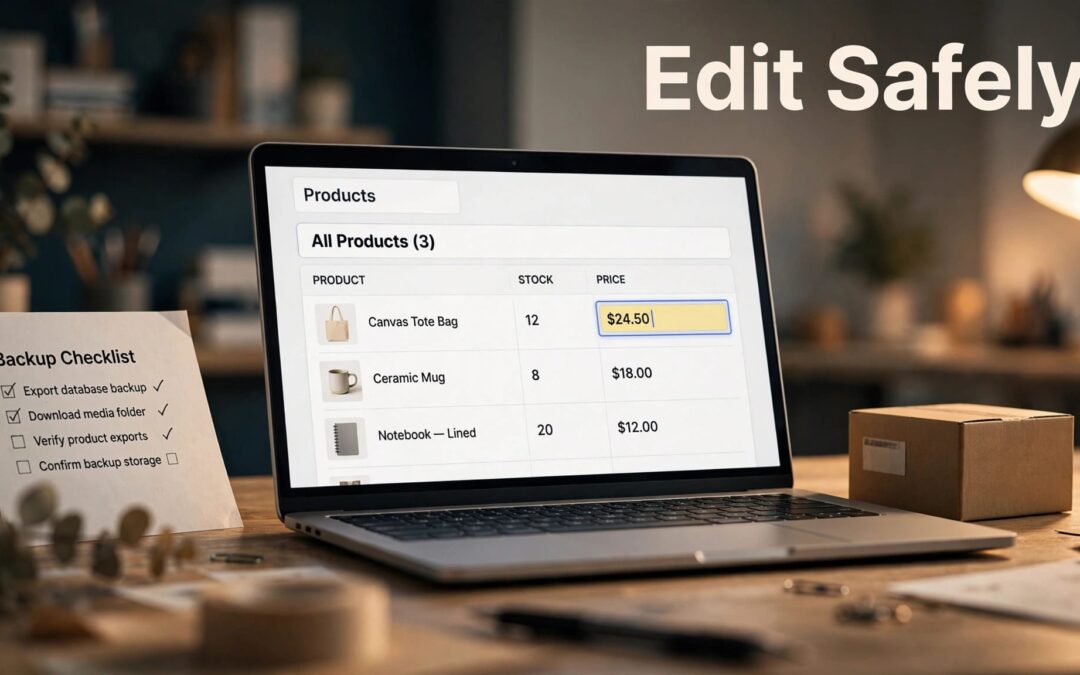
You can bulk edit WooCommerce products using the tools already in your store, or use a dedicated editor for more complex changes. The safest approach starts with a backup, a clear list of products, and a small test before you update the full catalog.
A few clicks can change a lot of prices. Let's make sure they change the right ones.
Key Takeaways
WooCommerce's built-in bulk editor is handy for selected products on one list page. Its CSV importer is better suited to larger updates where each product needs its own values.
Keep an untouched product export and a restorable site backup before you begin. Test a small batch, pay attention to variations, and inspect the results on your storefront before moving on.
Prepare Your Store Before Making Changes
A little planning gives you control over what changes and what stays put. Start with the products, then decide which fields need an update.

Define the products and fields
Choose the category, product type, or individual items involved. Then write down the intended change. For example, you might increase regular prices for a group of simple products while leaving sale prices and stock untouched.
Look for exceptions before you start. A product already on sale, an item with a special price, or a variation with separate pricing may need a different update. Knowing those exceptions now makes the final review much easier.
Save an export and a full backup
In WordPress, open Products > All Products and select Export. Choose the product types, categories, and columns you need. If custom metadata matters to your catalog, select the option to export it too.
Save the original download and make edits in a separate copy. Our WooCommerce product CSV export guide covers what to include.
A CSV is a useful reference, but it isn't a complete store backup. Keep a restorable copy of your WordPress database and site files as well. That includes your uploaded media.
Use WooCommerce's Built-In Bulk Editor
For a straightforward change to selected products, the dashboard is a good place to start. You don't need to build a spreadsheet or install another plugin.
- Open Products > All Products in your WordPress dashboard.
- Select the checkboxes beside the products you want to change.
- Choose Bulk edit in the Bulk actions menu and click Apply.
- Set the changes you want, leaving other fields at No change.
- Click Update, then inspect the affected products.
There's one detail we don't want you to miss: selection applies to products on the current list page. If your category spans several pages, work through them deliberately rather than assuming every matching product was selected.
The built-in price controls also have a variation limit. By default, bulk price changes apply to simple and external products, not individual variations inside a variable product. WooCommerce's bulk editing documentation explains the native workflow.
Before you repeat an action on another page, make sure you're working with the intended selection. A missed page is inconvenient. An update applied to the wrong page can take longer to untangle.
Use a CSV for Larger or More Detailed Updates
A CSV gives you a row-by-row view of your catalog. It's useful when products need different prices or when you want to prepare changes in a spreadsheet before importing them.
Build an update file
Start with a fresh export from the store you're updating. Keep each product's ID or SKU intact so the importer can match the row to the right item. IDs are tied to a store, so an export from the destination store is a safer starting point than a file from somewhere else.
Edit a copy of the file and focus on the fields you intend to change. Keep identifiers as text in your spreadsheet so leading zeros aren't accidentally removed. Review SKUs against the live catalog, not only against other rows in the file.
Need custom fields or variation data? Include the relevant information in your preparation and test those rows. Extensions can use their own file formats, so follow the instructions for the importer you choose.
Import existing products as updates
In Products > All Products, choose Import and upload your file. Select Update existing products when the rows are meant to change items already in the store.
Review the column mapping before starting. WooCommerce can match existing products by ID or SKU, and it skips unmatched rows in update mode. Its CSV importer documentation also describes matching with a mapped global identifier, such as a GTIN, UPC, EAN, or ISBN.
After the import, save the report. Accepted, skipped, and failed rows each deserve a look before you decide what to do next.
Choose the Right Price Change
A price update sounds simple until regular prices, sale prices, and exceptions enter the picture. Decide what each number should mean before applying a change.
Separate regular prices from sale prices
The regular price is your baseline. A sale price is the temporary selling price.
If a product's regular price is $20 and you enter a sale price of $18, shoppers see a $2 discount. If you replace the regular price with $18 instead, you've changed the baseline rather than created that same sale setup.
For a promotion with dates, our guide to scheduling WooCommerce sale prices walks through the product editor. Review existing sale prices before a regular-price increase so an older promotion doesn't produce an unexpected result.
Check the math before applying it
For a 10% increase, a $20 regular price becomes $22. A 10% discount on $20 produces an $18 sale price. Simple enough, but the result can differ across a catalog with existing discounts or different price points.
Decide how you'll handle rounding and which products are excluded. If you display prices with tax or use a currency extension, inspect the customer-facing result too. The value in your edit file is only part of what a shopper may see.
Handle Product Variations With Care
A variable product can contain separate prices for sizes, colors, or other choices. Changing the parent product doesn't automatically mean every variation receives the intended price.
For a small number of products, open the product editor and work through the Variations tab. Expand each eligible variation, review its regular price, and enter a sale price and schedule where needed. Save the variation changes, then update the product.
For a large variation catalog, a dedicated extension or a supported CSV workflow may be easier to manage. WooCommerce's Bulk Product Editor documentation describes a separate spreadsheet-style extension. Treat it as an added tool, with its own controls, rather than a feature built into the standard product list.
Give variation rows reliable identifiers when you use them for imports. A variation can have its own SKU, but it doesn't have to. If its SKU is blank, WooCommerce can fall back to the parent SKU, which makes careful matching even more important.
Test a Small Batch Before the Full Update
A successful upload tells you the process ran. It doesn't tell you every product looks right to a customer.

Pick a representative sample
Choose a handful of rows that reflect the update. Include a simple product, a variable product with its variations if applicable, and an item with custom fields if those are part of the change.
Use a staging copy when available. Run the same mapping and update process you plan to use on the live store, then inspect the import report. Our WooCommerce product import guide has more detail on matching products and avoiding duplicate SKUs.
Staging stock can fall behind while your live store takes orders. If stock is part of your update, use fresh live quantities for the final file.
Look at the store as a customer
Open the edited products in the dashboard and on the storefront. Check the price, sale display, images, stock status, and variation choices that matter to your change.
Select the actual size or color a customer would buy. Add an affected product to the cart and review the displayed price there too. A sale price won't make an out-of-stock variation purchasable, so check availability before sending shoppers to a promotion.
Fix Errors Without Creating More
If an import reports a problem, pause before uploading the same file again. Save the report and identify which rows succeeded, which were skipped, and which failed.
Compare those rows with the live products. Correct the issue in a new working file, then test the affected rows before continuing. This keeps a partial update from turning into a confusing second pass.
A full site restore can reverse more than product edits. It may also overwrite orders or other changes made after the backup. If the store has taken orders since then, plan the recovery carefully with your hosting support team rather than restoring blindly.
Give Your Store a Reliable Hosting Foundation
Bulk edits depend on clean product data, but your hosting matters too. A WooCommerce store handles product requests, customer sessions, carts, and checkout activity while you manage the catalog.
If your dashboard struggles during normal store activity, it may be time to consider more room to grow. We offer WordPress hosting, Web Hosting Plus, and VPS hosting options, along with 24/7 customer support.
Choose a setup that fits your store's workload and your need for a dependable backup and recovery process. The right foundation helps you spend less time wrestling with the dashboard and more time running your shop.
Frequently Asked Questions
Can I bulk edit WooCommerce products without a plugin?
Yes. WooCommerce includes a bulk editor on the Products list and a built-in CSV importer and exporter. The editor is useful for selected products on one page; CSV updates give you a row-by-row approach for larger changes.
Can I change every variation price with the standard bulk editor?
The standard product-list bulk price controls don't update individual variations by default. Use the product's Variations tab, a supported CSV workflow, or a separate extension suited to the job.
Is a product CSV enough to restore my store?
No. A CSV can provide a reference for product data, but it doesn't replace a restorable backup of your WordPress database and site files. Keep both before a major catalog update.
Make Your Next Bulk Edit With Confidence
A safe bulk edit comes down to a clear scope, a reliable backup, and a small test. Check what customers will see before you apply the change across your catalog.
Ready to update your prices? Start with a fresh export and a few representative products. Once those look right, you can move ahead with a lot more confidence.