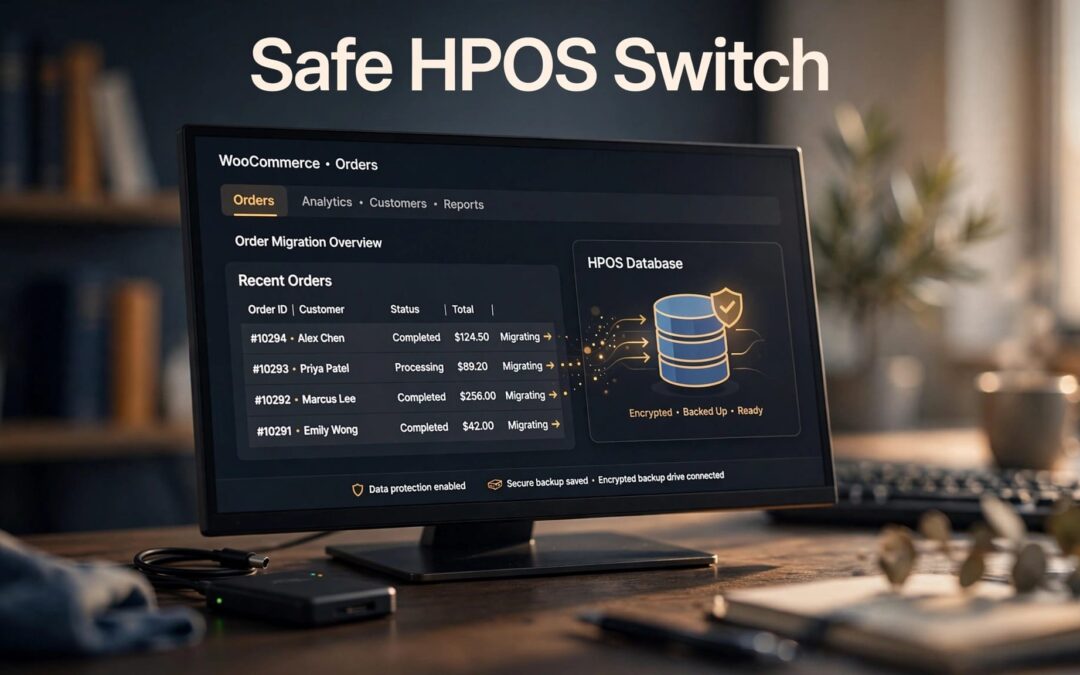
To enable WooCommerce HPOS safely, back up your store, test compatibility on staging, synchronize order data, then switch storage. We recommend keeping compatibility mode active during the transition so your return path stays available.
Your store can get a better foundation for handling orders without turning checkout into an experiment. Start with data protection, then make the switch in a clear, controlled order.
Key Takeaways
- Test payment gateways, fulfillment tools, subscriptions, and custom order code before changing live storage.
- Finish order synchronization before selecting HPOS as the active datastore.
- Keep compatibility mode enabled during initial monitoring so legacy storage stays current.
- Test the complete purchase process after switching, including payments, stock changes, emails, and refunds.
What WooCommerce HPOS Changes

Dedicated tables give orders their own space
Legacy WooCommerce storage keeps order data in WordPress's posts and post metadata tables. Those tables also handle other website content.
High-Performance Order Storage moves order data into four dedicated tables. That structure supports more efficient order storage and retrieval as your business grows.
Think of it as giving your order department its own filing system. Less shared clutter. A structure built around orders.
HPOS doesn't replace your payment gateway, fix broken checkout scripts, or add server capacity. Those parts still need attention.
New stores and existing stores start differently
WooCommerce 8.2, released in October 2023, made HPOS the default for new installations. Existing stores weren't automatically switched.
Your store may already use it. Open WooCommerce > Settings > Advanced > Features and look at the selected order storage option.
Already using HPOS? Focus on compatibility and monitoring rather than repeating a migration. Still using legacy storage? Prepare the store before changing that selection.
Prepare a Recovery Plan Before Switching

Back up the database and rehearse on staging
Take a fresh database backup and keep the matching website files available. Order storage lives in the database, so a copy of themes and plugins alone won't protect your orders.
Test the restore process on a separate environment. A backup becomes useful when you can recover it.
Create a staging copy for the migration rehearsal. Use payment sandbox credentials, prevent customer emails, and stop copied integrations from triggering live fulfillment or recurring charges.
Keep staging changes separate from production orders. Pushing an older staging database over your live store can erase purchases made since the copy.
Our WooCommerce hosting launch checklist covers the hosting and recovery basics that belong in this preparation.
Review every tool that touches orders
The Features screen displays extension compatibility information. Resolve listed incompatibilities before proceeding.
Include gateways, shipping tools, invoices, exports, accounting connections, subscriptions, and reporting tools. Custom snippets and integrations deserve the same attention.
A compatibility declaration is a starting point. Your store's actual workflows still need testing.
Older custom code may read orders directly through WordPress post functions. HPOS-compatible integrations should use WooCommerce's order APIs so they work with the selected datastore.
We recommend updating and testing these components before migration day. Changing several plugins during the storage switch makes troubleshooting harder.
Enable WooCommerce HPOS in the Right Order
Synchronize while legacy storage remains active
For an existing store using legacy storage, the safe sequence starts with two matching copies of your order data.
Follow the sequence in WooCommerce's official HPOS enablement guide:
- Open WooCommerce > Settings > Advanced > Features.
- Leave WordPress posts storage (legacy) selected.
- Enable compatibility mode and save the settings.
- Allow background synchronization to finish before selecting HPOS.
Compatibility mode synchronizes order data between the storage systems. During this first stage, legacy storage remains authoritative, meaning it's the source WooCommerce uses.
Larger order histories take longer to copy. Closing the settings page doesn't mean synchronization has finished.
If progress stops, review WooCommerce > Status > Scheduled Actions for failed background jobs. Address scheduling errors or resource problems before continuing.
Switch only when synchronization finishes
Once synchronization is complete and WooCommerce allows the selection, choose High-performance order storage (recommended) and save.
HPOS now becomes authoritative. Leave compatibility mode enabled during the initial transition so the legacy copy continues receiving order updates.
Repeat the process on production only after the staging rehearsal passes. Choose a low-traffic window and take another fresh backup immediately beforehand.
Don't copy the rehearsed staging database back onto your live store. Apply the storage settings to production and let its current order data synchronize.
Keep a record of the switch time and any changes made. That gives you a clear starting point if logs reveal a problem.
Test the Whole Purchase, Not Just the Button
Run successful and failed payment tests
A working order screen is encouraging. A completed purchase tells you much more.
On staging, use your gateway's test mode for a successful purchase and a controlled decline. Compare the WooCommerce order with the gateway's transaction record.
After switching production, use an appropriate controlled purchase to exercise the live payment connection. Don't turn a busy checkout into a public test session.
Inspect order status, payment references, inventory changes, customer emails, and order notes. For physical products, follow the order into fulfillment. For downloadable products, test customer access.
If a payment times out, establish whether money was captured before retrying or refunding. Our guide to troubleshooting failed WooCommerce payments helps separate payment problems from order-record problems.
Exercise the paths customers actually use
Test guest and account checkout on a phone and desktop. Include coupons, shipping locations, and the payment methods your customers use.
Open older orders too. Search, filter, edit, export, and process a controlled refund. Stores using subscriptions should test the relevant renewal workflow on staging.
Keep personalized cart, checkout, and account pages outside full-page caching. A storage migration won't correct cached checkout data.
Watch WooCommerce logs and integration errors during normal trading afterward. One successful purchase doesn't cover delayed payment callbacks, scheduled renewals, or overnight exports.
Keep Rollback Available Without Losing New Orders
A safe return to legacy storage depends on completed synchronization, not simply having an old copy somewhere.
WooCommerce's HPOS storage documentation explains the relationship between compatibility mode, synchronization, and the selected datastore.
If you need to return to legacy storage, keep compatibility mode enabled and allow the legacy tables to catch up. Then select WordPress posts storage (legacy) when WooCommerce permits the change.
If compatibility mode has been disabled, re-enable it and complete synchronization first. Recent orders may exist only in HPOS until that process finishes.
A pre-migration backup won't contain orders placed after it was taken. Restoring it without reconciling newer purchases can remove valid orders.
Don't delete order tables as a troubleshooting shortcut. Preserve both storage copies while investigating errors.
WooCommerce recommends leaving compatibility mode enabled for a period after switching, without prescribing a fixed duration. We recommend keeping it through representative order workflows and scheduled integrations.
Once those pass, you can consider disabling compatibility mode to stop maintaining duplicate order data.
Give HPOS Hosting That Can Handle the Workload
Better order storage still needs enough server capacity. Synchronization, checkout requests, payment callbacks, and background jobs all share resources.
If checkout slows mainly during promotions, inspect PHP worker availability, database load, memory pressure, and failed requests. Object caching and isolated resources can help when those are the bottlenecks.
At ZADiC, our WordPress hosting plans include automatic backups and 24/7 support. That gives you a stronger foundation for store maintenance and recovery.
Need more room without managing a full server? Our Web Hosting Plus plans start at $30.99 per month and offer a simple control panel.
For stores that need server-level control and configurable resources, explore our VPS website hosting. Choose the plan around your workload and management needs.
A hosting upgrade won't repair incompatible order code. Pair the right resources with tested extensions, healthy background jobs, and a working recovery plan.
Frequently Asked Questions
Why is the HPOS option unavailable?
Active extensions marked incompatible or incomplete order synchronization can prevent switching. Resolve the listed compatibility blockers and let synchronization finish. Don't bypass the restriction just to make the setting selectable.
Can compatibility mode replace a backup?
No. Compatibility mode keeps order storage systems synchronized, but it isn't an independent recovery point. Accidental changes can affect synchronized data too. Keep separate backups with a tested restore process.
Will HPOS make every store faster?
HPOS improves how WooCommerce stores and retrieves order data. The visible benefit depends on order volume, extensions, queries, and hosting capacity. It won't remove an unrelated JavaScript error or a slow payment-provider response.
Does switching move the product catalog too?
HPOS changes order storage. It doesn't migrate your product catalog into the dedicated order tables. Product management remains separate from this storage switch.
Make the Switch With a Clear Recovery Path
WooCommerce HPOS is easier to introduce when each step has a clear finish: compatible tools, completed synchronization, and successful order tests.
We recommend protecting current order data throughout the transition. Keep the legacy copy synchronized while you test, and preserve backups independently.
Choose a ZADiC hosting plan that fits your store's workload, then follow the migration sequence. Better order storage should support your next sale without putting today's orders at risk.