

A broken site can feel like a locked storefront. Pages disappear, logins fail, and every lost minute chips away at trust. The good news is that a site backup restore is often much simpler than it looks.
When we keep the right backup and follow a clean order, we can bring a site back without guesswork. Better still, hosting with built-in backups turns a stressful fix into a routine task. Let’s start with the backup itself.
Pick the right backup before you restore anything
Before we restore a single file, we need to choose the right restore point. That means a backup taken before the problem started, not after. If a plugin update broke the site at 2 p.m., a 4 p.m. backup probably keeps the damage.
We also need to know what kind of backup we have. A full backup includes files, databases, email settings, and more. A partial backup may include only the home directory or only the database. That matters because a website usually needs both files and database data to work again.
If the backup is newer than the problem, stop there. Restoring it can bring the same problem right back.
This is also where good hosting pays for itself. If we’re relying on random downloads from months ago, recovery gets slow fast. On the other hand, automatic site backups for hosting give us cleaner restore points, better timing, and a lot less stress when something goes wrong.
One smart move before any restore, if the account still works, is making one fresh backup of the current state. That gives us a fallback if we restore the wrong version. Think of it like taking a photo before moving furniture around. It’s simple, and it saves headaches later.
Restore a website backup in cPanel
For many hosting accounts, the fastest path is through cPanel. The process is straightforward, and that’s why cPanel remains a popular choice for site recovery.
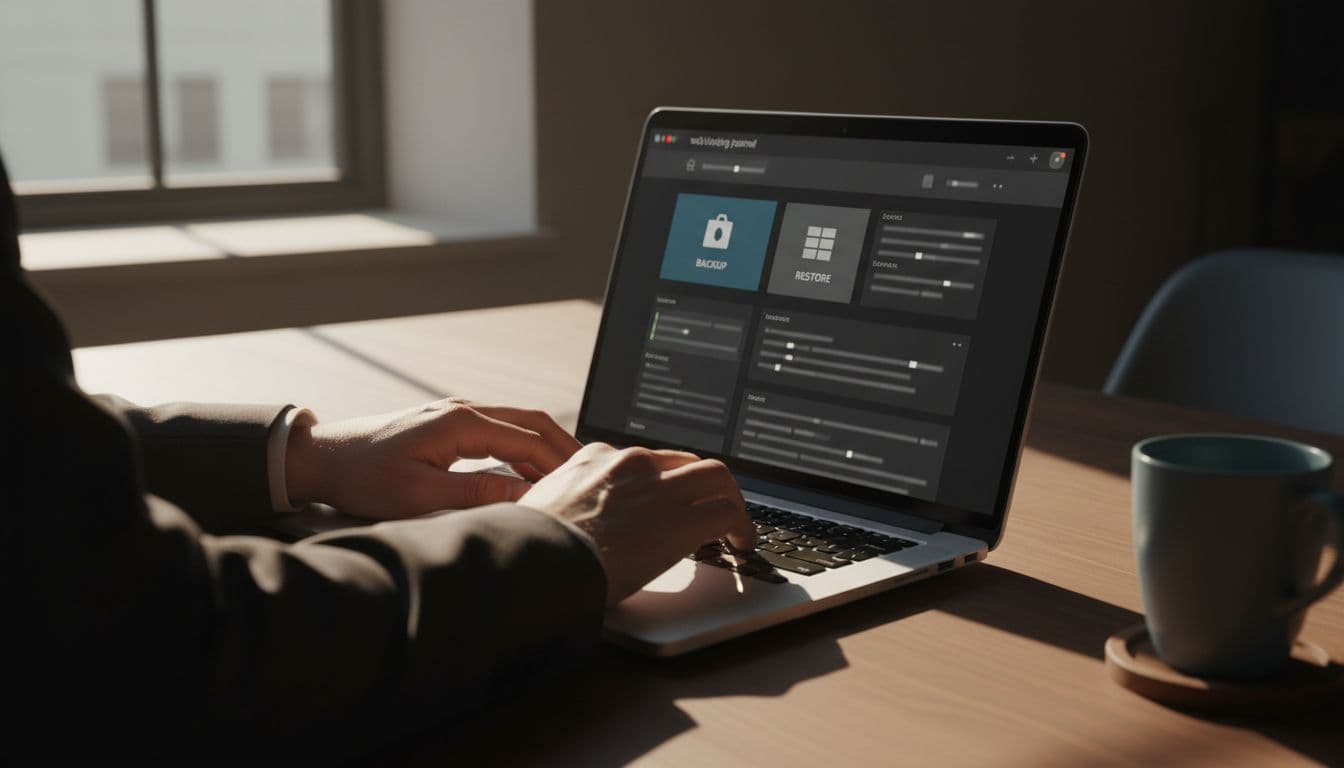
If our host offers the standard Backup or Backup Wizard area, we can usually restore in this order:
- Log in to cPanel and open Backup or Backup Wizard.
- Choose what we want to restore, home directory, MySQL database, or email settings.
- Upload the backup file that matches the broken part of the site.
- Wait for the restore to finish, then clear any cache at the site or server level.
- Visit the site, test a few pages, and confirm the database connection works.
If the whole site is down, we often need both the home directory and the database. The files hold themes, plugins, images, and code. The database holds posts, pages, settings, user accounts, and product data. Miss one piece, and the site may load badly or fail outright.
If only one area broke, we can restore less. For example, a damaged image folder may only need file recovery. A failed plugin update may need a WordPress-specific rollback instead of a full account restore. That saves time and avoids wiping out newer content.
This is where reliable backup tools shine. A good host keeps the restore path short, clear, and fast, which matters when sales pages, bookings, or support forms are on the line.
Restore WordPress without losing recent content
WordPress adds one extra layer, because problems often start with a plugin, theme, or update. So our first job is to decide whether we need a full restore or a targeted one.

If we can still reach the WordPress admin area, a backup plugin may let us restore with a few clicks. If the admin is gone, cPanel or our hosting dashboard becomes the safer route. In both cases, we need to remember the same rule, WordPress recovery usually means restoring both site files and the database together.
A few common cases look like this:
- If a plugin update caused the crash, restore the last clean backup or replace only the bad plugin files.
- If the site was hacked, restore a backup from before the attack, then change passwords right away.
- If recent posts matter, compare backup dates carefully so we don’t wipe out fresh content by mistake.
WordPress hosting can make this much easier. If we want less manual work and faster recovery, ZADiC WordPress hosting gives us a setup built for WordPress from the start, which means fewer moving parts when restore time comes.
After the restore, don’t rush back to normal. First, hold off on the update or plugin that caused the trouble. Fix the root issue, then turn things back on one at a time.
Check the site after the restore, then tighten your backup plan
A restore is only finished when the site works like it should. So we need a short post-restore check, not a quick glance.
Start with the pages that matter most:
- Load the homepage and a few inner pages.
- Log in to the admin area.
- Test forms, checkout, or booking flows.
- Check images, links, and permalinks.
- Clear cache, then change passwords if security was part of the problem.
If something still looks off, don’t panic. Often the issue is cached files, a missing database import, or a plugin conflict. Those are fixable.
The better long-term move is simple: stop treating backups like an afterthought. Daily backups, clean restore points, and hosting that supports fast recovery can save hours of downtime and a lot of lost revenue.
A backup turns a locked storefront back into an open door. What matters most is restoring from a clean point, in the right order, then checking the site before we move on.
If our current hosting makes restores feel risky or slow, it’s time to switch to a setup built for recovery. The next outage shouldn’t become a rebuild.