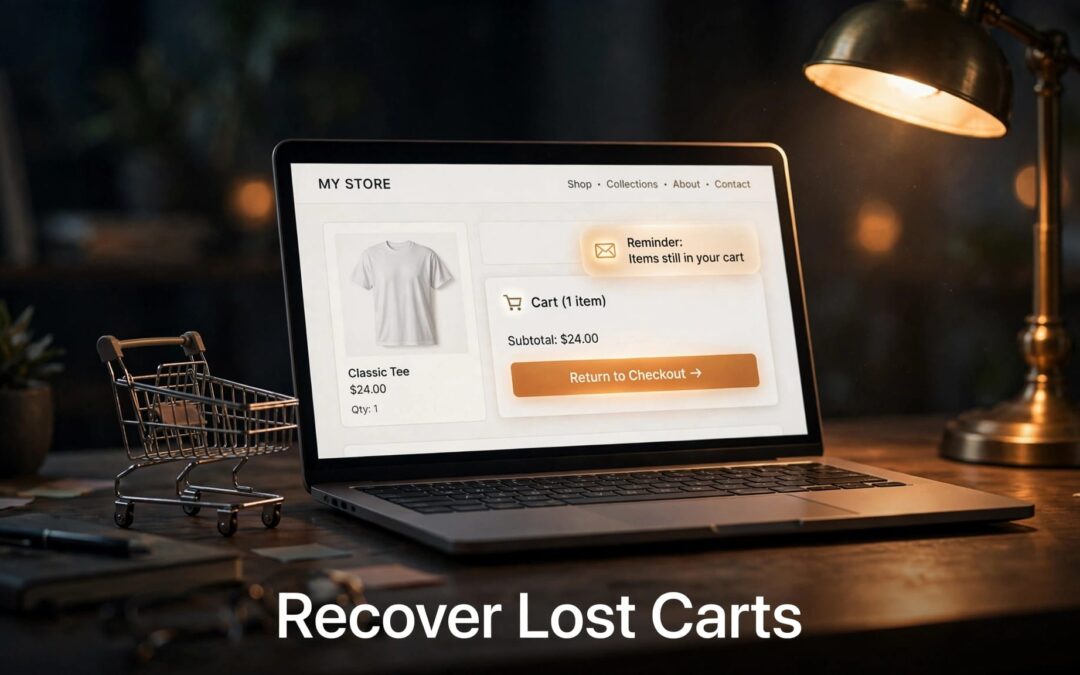
WooCommerce abandoned cart emails give shoppers a clear way to return to items they left behind. To send them, you need a recovery tool that captures the cart, an email address, and a follow-up workflow.
The details matter. A reminder can't help if it lands in spam or leads back to an empty cart. We recommend building a dependable path back to checkout first, then improving the messages around it.
Let's get that path working.
Key Takeaways
- Choose one cart-recovery extension that captures eligible guest and customer carts.
- Write a helpful reminder with a working return link, and stop the sequence when the shopper purchases.
- Test the cart, scheduled message, delivery, and checkout together.
- Treat recovery emails as marketing and respect applicable consent and unsubscribe rules.
- Give your store reliable hosting and an authenticated email-sending setup. Each has a different job.
How WooCommerce Abandoned Cart Emails Work
A shopper adds a product, starts checkout, and leaves before buying. A recovery extension records the cart and, when it has an eligible email address, can send a reminder after the inactivity period you set.
The customer can then use the message to return to the store. Depending on the extension and the shopper's session, that link can restore their saved cart.

There's one limit to keep in mind: a cart isn't automatically an email contact. If a guest leaves before providing an address, the extension has nowhere to send a reminder.
A pending order is a separate situation. The shopper may have submitted checkout but hasn't completed payment. Use the order and payment records to understand what happened before sending a message that asks them to buy again.
Recovery also depends on a working checkout. If shoppers can't complete an order, a reminder may send them straight back to the same problem. Start with our guide to fixing WooCommerce checkout errors when payments or checkout pages aren't behaving.
Choose a Cart-Recovery Tool for Your Store
WooCommerce's standard order emails handle order notifications. For abandoned-cart follow-ups, you'll need an extension or connected service with a recovery workflow.
We recommend choosing one tool first. That keeps competing reminders and duplicate rules out of your way.
AutomateWoo for Workflow Control
AutomateWoo's abandoned-cart documentation covers cart statuses, stored carts, and the guest information needed for recovery. It's an option when you want to build follow-up workflows inside your WooCommerce setup.
Look at how you'll capture guest details, define an abandoned cart, and stop messages after a purchase. The trigger matters as much as the email design.
Abandoned Cart Recovery for Campaigns
WooCommerce's Abandoned Cart Recovery extension supports follow-up campaigns for abandoned carts and pending orders. That's useful when you want to manage those situations within one recovery setup.
Our email marketing plans are another option for broader campaigns. A marketing plan doesn't replace the need for a compatible cart-recovery integration, so build the WooCommerce trigger and cart link around the tool you choose.
Set Up Your First Recovery Workflow
Start with one workflow and one test product. Once the full journey works, you can expand it to the rest of your store.
- Install and activate your chosen recovery extension. Open its settings and enable cart tracking.
- Configure guest and account-holder capture as appropriate for your store. Make the purpose of the data collection clear.
- Choose the inactivity period that marks a cart as abandoned. Set up a follow-up email with your store name, a useful subject line, and a cart-recovery link.
- Add a rule that stops future reminders when the shopper completes a purchase or opts out.
- Run a test with an address you control. Leave a cart, receive the message, follow the link, and complete the purchase.
The exact menus depend on your extension. Keep the workflow focused on the outcome: the right shopper receives the right reminder and can return to the right cart.
Don't forget guest checkout. Customers who prefer not to create an account can still buy, but your recovery tool needs to capture their address before they leave. Our guide to WooCommerce guest checkout covers the account settings behind that experience.
Write Follow-Ups That Make Returning Easy
A useful reminder sounds like your store and gives the shopper a clear next step. Keep the message friendly, recognizable, and easy to read on a phone.
Start With a Clear Reminder
Your first message can be short. Include your store name, a reference to the cart, and a button that takes the shopper back.
For example, a subject line could read: "Your cart is ready when you are." The message might say: "You left something in your cart. Return to checkout whenever you're ready."
Keep the button direct, such as "Return to your cart." If your tool adds product names or images, test those details with real variations so shoppers don't see the wrong size or color.
Give Later Messages a Purpose
A later follow-up can answer a practical question. Point shoppers toward shipping information, returns, or a way to contact your team. Those details can help someone decide without making assumptions about why they left.
You can offer a discount, but protect your margins and make the terms clear. A coupon is optional, not a requirement for every cart. Never imply that an item is reserved or that an offer is expiring unless that's true.
Stop the sequence after a purchase. A customer who has already paid shouldn't receive another message asking them to finish.
Get the Emails Delivered
A saved workflow isn't proof that a message reached an inbox. Your extension must create the email, the sending service must accept it, and the receiving mail system must deliver it.
Set Up a Trustworthy Sender
Use an address associated with your store's domain, and connect an authenticated mailer or email service. SPF, DKIM, and DMARC help receiving systems identify authorized mail. Our guide to email authentication records explains how those pieces fit together.
Our professional email plans can give your business a domain-based inbox. Your inbox and your automated sending service may be separate, so configure authentication for the service that sends the recovery messages.
SSL protects the connection to your website. It doesn't replace email authentication.
Follow the Message Trail
If a reminder doesn't arrive, find where it stopped. First, look for the captured cart and confirm that the shopper met the workflow conditions. Then inspect the extension's activity or email log.
If the message was queued, open WooCommerce > Status > Scheduled Actions and look for a failed or overdue job. Finally, review the sending service's delivery records and the recipient's spam folder.
Our guide to troubleshooting WooCommerce emails breaks down trigger, sending, and delivery problems. Fixing the right stage is much easier than changing settings at random.
Respect Privacy and Marketing Preferences
A shopper entering an email address at checkout doesn't automatically give you permission to send every kind of message. Recovery reminders can fall under marketing rules, and requirements depend on where you and your customers are located.
Explain how you'll use the address, collect only what the workflow needs, and keep consent records where required. Give recipients a clear way to unsubscribe from marketing messages, and honor that choice across later follow-ups.
For UK audiences, the ICO's email marketing guidance explains the Privacy and Electronic Communications Regulations. The ICO also distinguishes email rules from tracking-pixel rules, so an open-tracking feature deserves its own privacy review.
Keep recovered cart details private, too. Test recovery links carefully and avoid exposing customer information to anyone who shouldn't see it.
Measure Recovery Without Losing Sight of Revenue
Once the workflow is live, review how many eligible carts were captured, how many messages were sent, and how many orders your tool attributes to recovery. These numbers answer different questions.
A low number of captured carts can point to a guest-data or tracking issue. Messages sent without many returns may call for a clearer subject line or a better link. If shoppers return but don't purchase, review checkout and payment issues before rewriting every email.
Compare the extension's attributed orders with your WooCommerce reports. Attribution tells you what the recovery tool counted; it doesn't prove every shopper would otherwise have abandoned the purchase.
Our guide to WooCommerce revenue reports can help you read net sales alongside discounts and returns. Keep coupon costs in view when deciding whether an offer is worth repeating.
Give Your Store a Reliable Hosting Foundation
Recovery starts with a cart that stays intact. WooCommerce uses a browser cookie and server-side session data to keep track of a shopper's cart. A caching or URL problem can break that connection before an email ever goes out.
Avoid serving Cart, Checkout, and My Account pages from full-page cache. Keep your store on a consistent HTTPS address, then test the journey in a private browser window. Add a product, refresh, visit checkout, and follow your recovery link.
Hosting also supports the background work behind a busy store. If scheduled tasks, checkout, or the dashboard struggle under your workload, look at the whole setup rather than adding another plugin.
At ZADiC, our WordPress hosting plans start at $9.99 per month. For stores that need a different level of control, we also offer VPS hosting. Our WooCommerce hosting checklist can help you choose a foundation that fits your store.
Bring Shoppers Back With Confidence
A good recovery email gives customers an easy route back to a cart that works. Start with one dependable workflow, a useful message, and a complete test.
Then watch what happens and improve the weak spot. With the right setup, your store can follow up with confidence while you focus on serving customers.