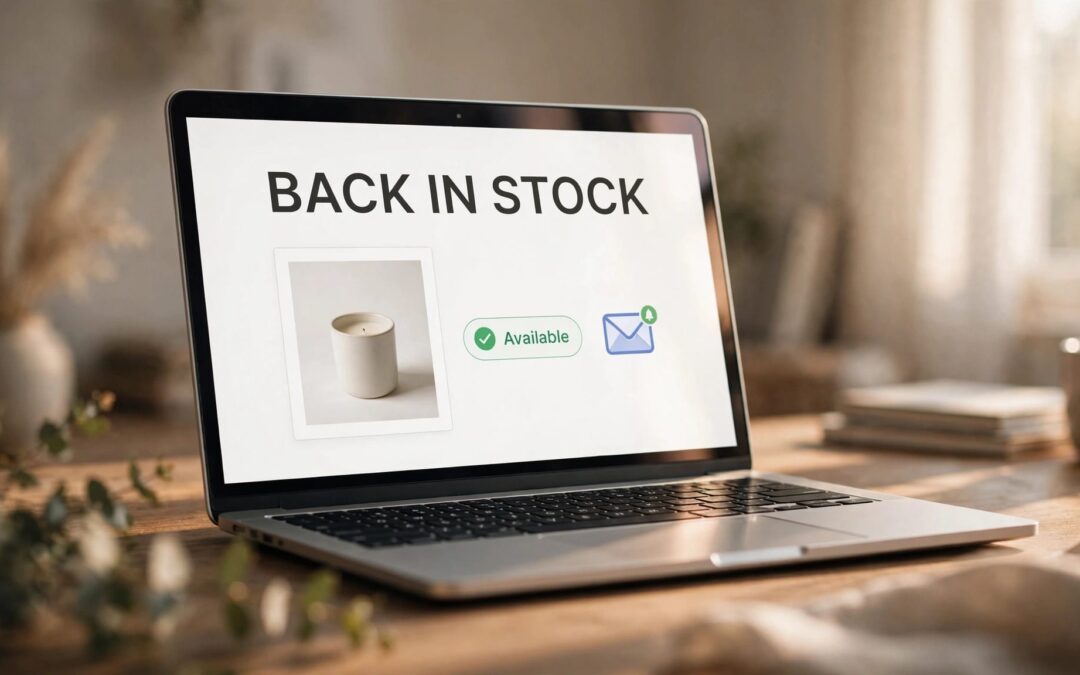
WooCommerce back-in-stock notifications let shoppers request an email when an unavailable product returns. Add a restock notification plugin, connect it to accurate inventory, and give interested customers a clear route back to checkout.
A sold-out product doesn't have to end the conversation. We recommend starting with one product and one complete test, so you can build a dependable setup before opening waitlists across your store.
Key Takeaways
- A restock notification plugin collects product-specific requests and emails subscribers when an item becomes available.
- Accurate stock settings matter at both the store and product levels, including individual variations.
- Restock alerts, low-stock warnings, and backorder notifications handle different events.
- Test the signup form, inventory change, customer email, and purchase journey before launch.
How WooCommerce Back-in-Stock Notifications Work
A good restock workflow gives shoppers something useful to do when buying isn't possible. Instead of repeatedly refreshing your store, they can leave an email address and wait for an update.
Turn a stockout into a subscription
A notification plugin places a signup form on eligible out-of-stock product pages. The customer's request connects their address to the product they want.
When that product becomes available again, the plugin sends a restock message. The customer follows the product link and decides whether to purchase.
That last step matters. A subscription shows interest, but it isn't an order. Keep paid purchases separate from your waiting list when planning inventory.

Keep backorders and restock alerts separate
Backorders let customers buy while an item is unavailable. Restock subscriptions let customers wait without placing an order.
WooCommerce's backorder email is associated with an order that creates a backorder. It doesn't replace a product waitlist or a customer restock alert.
We recommend choosing the selling policy first. If you want to accept purchases before replenishment, our guide to managing WooCommerce backorders explains the inventory commitments involved.
Get Product Inventory Ready First
Your notification plugin needs trustworthy availability information. An attractive signup form won't help if the saved product status doesn't match what you can ship.
Enable tracking where stock is managed
Open WooCommerce > Settings > Products > Inventory and enable stock management. WooCommerce's Products Settings documentation covers these store-wide inventory controls.
Next, open the product and find Product data > Inventory. Enable product-level stock management where appropriate, then enter the quantity available to sell.
For variable products, review the relevant size, color, or other variation. A restocked medium shirt shouldn't be treated as a restocked large shirt.
Reconcile earlier orders against physical inventory before entering a starting quantity. Turning tracking on doesn't reconstruct previous sales.
Separate thresholds from availability
A low-stock threshold triggers an inventory warning. The out-of-stock threshold affects when tracked inventory becomes unavailable.
Backorders add another decision: an item can remain purchasable at zero stock when backorders are allowed. Review the quantity, stock status, and backorder setting together.
Leave hold-stock timing alone unless unpaid orders are the problem. Changing unrelated settings makes troubleshooting harder.
If quantities aren't changing after purchases, fix that first. Our guide to troubleshooting WooCommerce stock updates helps separate saved inventory problems from an outdated storefront display.
Choose a Plugin That Fits Your Store
Start with the customer journey you need. Product signup, a clear restock trigger, and a useful customer email come before decorative extras.
Match the plugin to the job
Back In Stock Notifier for WooCommerce provides waitlist forms for out-of-stock products and automatically emails subscribers when products are replenished. That's the basic workflow most stores need.
Waitlist WooCommerce also creates product waiting lists, sends email notifications, and tracks demand. Those demand records can help you understand which unavailable products still attract interest.
Notifima is another option listed on WordPress.org, with inventory management, waitlists, and stock notifications.
We recommend choosing one notification system rather than installing several overlapping tools. Fewer overlapping rules make subscriptions and troubleshooting easier to manage.
Make subscribing feel easy
Keep the form close to the product's availability message. Use clear button wording, such as "Notify me when available," so customers understand the request.
Explain that the email concerns the selected product. Don't treat a restock request as automatic permission for unrelated newsletters or promotions.
Provide a way to cancel the request, and include subscription handling in your privacy information. Collect only the information needed for the alert.

Set Up and Test the Restock Journey
A saved setting is only the starting point. We recommend testing the actual customer journey on staging, with messages directed to an address you control.
Follow this sequence:
- Install one notification plugin. Activate its waitlist and customer notification controls. Configuration screens differ between plugins; Addify's automatic restock email instructions describe that workflow for its own notifier.
- Prepare an unavailable test product. Set its inventory and backorder policy so the item genuinely becomes unavailable. Open the product page while logged out.
- Submit a subscription. Use your test mailbox and complete any confirmation step your chosen plugin requires. Look for a clear success message.
- Replenish the same item. Update the product or variation that received the request. Save the change and review its resulting stock status.
- Follow the notification through checkout. Open the email, follow its product link, select the correct variation, and complete a controlled purchase using your gateway's test mode where available.
Also test how your real inventory workflow changes availability. A manual edit and a warehouse integration may update WooCommerce differently.
Keep notes on the product, variation, stock change, and email received. That gives you a useful comparison if something breaks after an update.
Once the full journey works, expand to more products. A controlled rollout makes problems easier to spot without involving your entire customer list.
Write a Restock Alert That Makes Buying Easy
The customer asked about a product. Keep that product at the center of the message.
Use a recognizable store name and a direct subject line. Include the product name, a useful image, and one clear button that opens the relevant product page.
We recommend keeping the opening short: explain that the requested item is available again, then let the customer act. Put extra store promotions elsewhere.
For variations, make the size or color obvious. The destination page should help customers find the version they requested.
A restock email shouldn't promise a reservation unless your store actually holds inventory for that subscriber.
Avoid unsupported urgency. Say stock is limited only when that statement matches your inventory, and don't suggest availability is guaranteed.
Finish with a support route and a way to stop further alerts. Clear wording gives customers confidence without adding pressure.
Give Restock Traffic a Reliable Home
A notification brings interested shoppers back to your store. Your hosting needs to support what happens next: product browsing, live availability, cart updates, and checkout.
Caching deserves attention here. Product pages need refreshed availability, while Cart, Checkout, and My Account shouldn't serve shared, cached customer sessions.
If the product editor shows fresh stock but visitors see an old sold-out page, investigate caching before changing inventory again. Editing a correct quantity can create another mismatch.
Our WooCommerce hosting checklist covers the hosting decisions behind a store launch. Use it to plan for shopping activity rather than treating your shop like a static website.
Ready to build that foundation? Explore our WordPress hosting plans for your WordPress store. We also offer 24/7 customer support, so help is available when hosting questions interrupt your day.
Choose your notification plugin for the alert workflow. Choose your hosting for the store that customers return to.
Frequently Asked Questions
Can hidden out-of-stock products still collect subscriptions?
Hiding unavailable items from catalog listings reduces the places shoppers can discover them. That can reduce exposure to the waitlist form.
Catalog visibility and direct product access are separate controls. A product page may remain accessible through an existing link even when it isn't listed in your shop.
Our guide to out-of-stock product visibility explains the built-in catalog setting. For products you expect to replenish, decide whether keeping the page discoverable would help customers register interest. Then test your theme's listings and direct product links.
Why didn't a restock notification arrive?
Start with the subscription record and the exact product or variation involved. Confirm that the saved availability changed and that the notification is enabled.
Then separate message generation from delivery. An email log can show whether WordPress attempted to send the message. Your configured mail service can provide the next part of that trail.
If the extension uses queued jobs, inspect WooCommerce > Status > Scheduled Actions for failed or overdue work. Also review the mailbox's spam folder.
Avoid repeatedly changing stock quantities to force another message. That can confuse inventory records and send duplicate customer alerts.
Make the Next Restock Easier to Buy
WooCommerce back-in-stock notifications work best when accurate inventory, a clear subscription form, and a tested email journey work together. We recommend getting those basics right before expanding the setup.
Start with one replenishable product. Connect the alert, test the purchase path, and give returning shoppers a store that's ready for them.
Keep the promise simple: a useful update when the item returns, followed by a clear opportunity to buy.