
A suspected WordPress breach changes the priority list fast. You need to limit access, protect your files, and stop stolen login sessions before you start digging into every detail.
Rotating WordPress security salts is one of the quickest steps you can take. It invalidates existing authentication cookies, which logs users out and forces fresh sign-ins. That can cut off an attacker who still has an active session.
The process is manageable, but the order matters. We recommend protecting the site first, replacing the full salt block, then reviewing every account and access point.
How WordPress security salts protect your site
WordPress security salts are secret random values stored in wp-config.php. They work with security keys to help protect authentication cookies, logged-in sessions, and nonces.
Think of them as part of the lock system for your website. Changing one doesn’t repair a hacked site, but replacing the full set makes old session data unusable.
The standard WordPress configuration includes eight values:
AUTH_KEYhelps protect authentication cookies.SECURE_AUTH_KEYsupports secure authentication.LOGGED_IN_KEYprotects logged-in user cookies.NONCE_KEYsupports nonce creation.AUTH_SALTadds another secret value to authentication data.SECURE_AUTH_SALTadds protection to secure authentication data.LOGGED_IN_SALTsupports logged-in cookie security.NONCE_SALTadds protection to WordPress nonces.
The official wp-config.php documentation explains how these values fit into WordPress configuration. The wp_salt() reference also shows how WordPress uses secret keys and salts when generating protected values.

Why changing salts logs users out
When WordPress creates an authentication cookie, it uses the security keys and salts in the process. After you replace those values, old cookies no longer match.
The result is immediate:
- Existing WordPress sessions stop working.
- Administrators and editors must sign in again.
- Stolen login cookies lose their value.
- Existing nonces may stop working and need to be regenerated.
That forced logout is the main reason to rotate salts after a suspected breach. It doesn’t remove malware or repair unauthorized changes, but it closes one access route quickly.
Rotating salts is an access-control step, not a complete malware cleanup.
Prepare the site before rotating salts
Don’t edit wp-config.php while an attacker may still be changing files or accounts. Take a few minutes to contain the situation first.
Start by putting the site into maintenance mode if you can do so without hiding important evidence. If the site is actively being abused, ask your host to isolate it or suspend public access temporarily.
Next, create a backup of the current site and database. Keep the backup in a safe location, and label it with the time and date. Preserve at least one copy for investigation, but don’t treat an old backup as clean automatically.
Before changing anything, record useful details:
- The time you noticed unusual activity.
- Unknown administrator accounts or recent users.
- Suspicious plugins, themes, files, or scheduled tasks.
- Recent password-reset emails.
- Unexpected redirects, pop-ups, or new content.
- Security alerts and hosting access logs.
Make a second backup of wp-config.php before editing it. The file contains database connection details and other sensitive settings. Store it outside the public website directory, protect its permissions, and don’t send it through an unsecured email thread.
If you use cPanel or another hosting panel, open the file through the file manager or connect with SFTP. If you have shell access, WP-CLI is usually the cleaner option. Either way, edit the correct WordPress installation.
Our WordPress hardening guidance should sit alongside this response, not replace it. Salt rotation helps end sessions, while hardening addresses wider risks such as weak accounts, outdated software, and unsafe configuration.
How to rotate WordPress security salts safely
There are two practical methods. Use WP-CLI if your hosting plan provides shell access. Use the WordPress salt generator when you need to edit wp-config.php manually.
Option 1: Replace the block in wp-config.php
Open the wp-config.php file in the root directory of the affected WordPress installation. Find the existing block containing the key and salt definitions.
Replace the entire block with newly generated values. Don’t change one line and leave the other seven untouched. A partial replacement gives you less certainty during an incident.
WordPress provides a generator that returns fresh random values for all eight constants. Copy the complete result, then paste it over the existing key and salt block.
The new entries should look like this structure, but every value must be newly generated:
define('AUTH_KEY', 'new-random-value');define('SECURE_AUTH_KEY', 'new-random-value');define('LOGGED_IN_KEY', 'new-random-value');define('NONCE_KEY', 'new-random-value');define('AUTH_SALT', 'new-random-value');define('SECURE_AUTH_SALT', 'new-random-value');define('LOGGED_IN_SALT', 'new-random-value');define('NONCE_SALT', 'new-random-value');
Don’t invent values, shorten them, or reuse keys from another website. Save the file, upload it if you used SFTP, and visit the site in a private browser window.
If the site shows a PHP error or stops loading, restore the backup copy immediately. A missing quote, extra character, or damaged PHP line can prevent WordPress from loading.
Option 2: Use WP-CLI
WP-CLI can update the file without requiring you to copy and paste long values manually. From the WordPress installation directory, run wp config shuffle-salts.
The command changes the salt values in wp-config.php in place. Check your hosting account’s PHP and WP-CLI setup before running it on a live site.
The official WordPress configuration command documentation covers the file and its placement. Keep a backup before using any command that modifies configuration files.
After the command completes, open a new private browser session and test the login page. Existing browser sessions should no longer work. If another administrator remains logged in, ask them to close the session and sign in again.
Complete the breach response after rotation
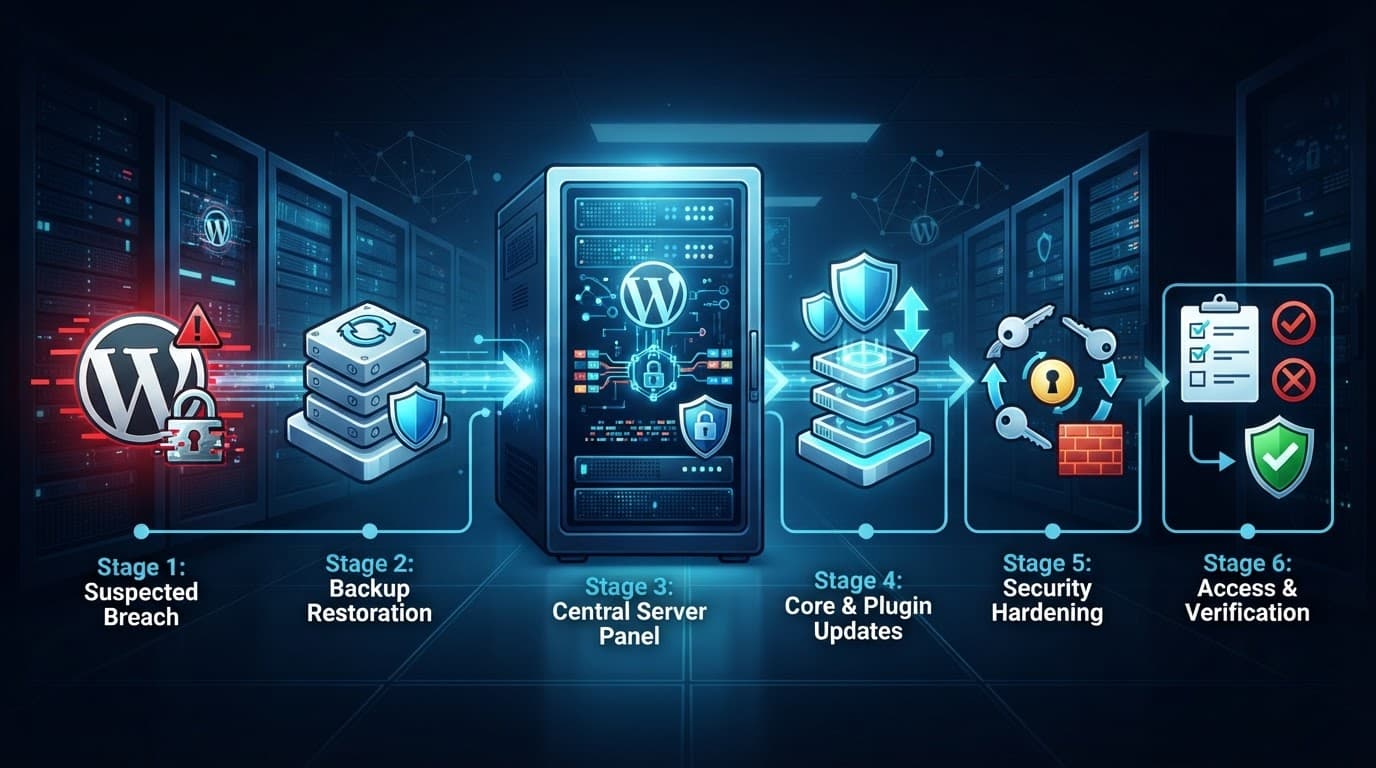
Rotating WordPress security salts is an important first move, but it isn’t the finish line. If an attacker accessed the site, assume other credentials or files may be exposed.
Change passwords for every WordPress administrator, hosting-panel user, SFTP account, database user, and email account connected to the website. Use separate, strong passwords for each service. Don’t keep an old password because it seems unrelated.
Review the Users screen carefully. Remove unknown accounts, delete unused administrator profiles, and reduce trusted users to the permissions they need. WordPress recommends avoiding the username admin and reviewing old accounts in its brute-force protection guidance.
Update WordPress core, plugins, and themes. Remove anything you don’t need, including inactive plugins. An inactive plugin can still become a problem if its files remain outdated or vulnerable.
Then inspect the site for changes:
- Compare plugin and theme files with trusted original copies.
- Check for unfamiliar PHP files in
wp-content. - Review recently modified files.
- Search posts and pages for injected links or scripts.
- Check cron jobs and scheduled tasks for unknown entries.
- Review redirects, DNS records, and administrator email addresses.
- Scan the website with a reputable security service.
If wp-config.php may have been exposed, rotate the database password too. The file stores database credentials, so changing salts alone doesn’t protect a database account that an attacker may already know.
Application passwords need separate attention. The official salt guidance clearly covers cookies and nonces, but it doesn’t state that salt rotation resets every application password. Review and revoke application passwords individually where your site uses them.
Don’t restore an old backup without checking it. A backup made after the intrusion can put the same malicious file right back on the server.
When hosting support should take over
Manual salt rotation works well for a small, isolated incident. A larger breach needs a wider response, especially when you can’t identify what changed.
This is where dependable hosting support earns its place. With ZADiC, you can choose WordPress hosting, managed Web Hosting Plus, or VPS hosting based on how much control and support your site needs. Security monitoring, SSL, backups, and human support reduce the number of moving parts you need to manage alone.
We recommend managed hosting when you don’t want to spend your day checking logs, patching software, and wondering whether a strange file belongs on the server. You still control your website, but you have a team and a stronger hosting setup behind it.
For a small business, that matters. The goal isn’t to become a full-time security administrator. The goal is to keep your site available, your customers confident, and your business moving.
Conclusion
Changing WordPress security salts can end active login sessions within minutes. Replace all eight values, test the site, then reset passwords and inspect the wider hosting environment.
Don’t mistake a forced logout for a full cleanup. Check users, plugins, themes, database credentials, backups, and hosting access before you call the incident closed. When the technical work becomes too much, managed WordPress hosting gives you reliable infrastructure and support without making security your full-time job.