
A live website doesn’t get a pause button, but sometimes it needs one anyway. Updates break layouts. Plugins clash. Store settings need attention. When that happens, website maintenance mode is how we keep the site calm, clear, and professional instead of letting visitors stumble into half-finished work.
We want the same thing every time, fewer surprises, fewer support calls, and fewer lost sales. The trick is to use maintenance mode like a clean storefront sign, not a locked door with no explanation.
Know when maintenance mode is the right call
Maintenance mode works best when the site is still running, but the user experience would be messy or misleading without a temporary break. If a change affects checkout, forms, account pages, or core navigation, we should stop and think before we push it live.
Here is the simple test we use:
- If visitors can still browse safely, maintenance mode may not be needed.
- If customers might submit a broken form or buy the wrong thing, we need it.
- If the change is visual only, a short staging review may be enough.
- If we are changing plugins, themes, payment tools, or major content, we should plan a window.
That last point matters. A website is not a scrapbook. It is part storefront, part salesperson, part support desk. When it looks unstable, trust slips fast.
For WordPress sites, routine updates are often the trigger. This maintenance checklist is a useful reminder of how quickly small updates can turn into a full maintenance window if we skip the prep.
The goal is not to disappear. The goal is to protect the experience while the work gets done.
Show visitors a page that feels intentional
A maintenance page should never look like an error. It should look planned. That means clear copy, a bit of brand personality, and one honest line about what is happening.
We do not need a long explanation. We need confidence. Visitors should know three things right away, what is happening, when we expect to be back, and what they can do in the meantime.
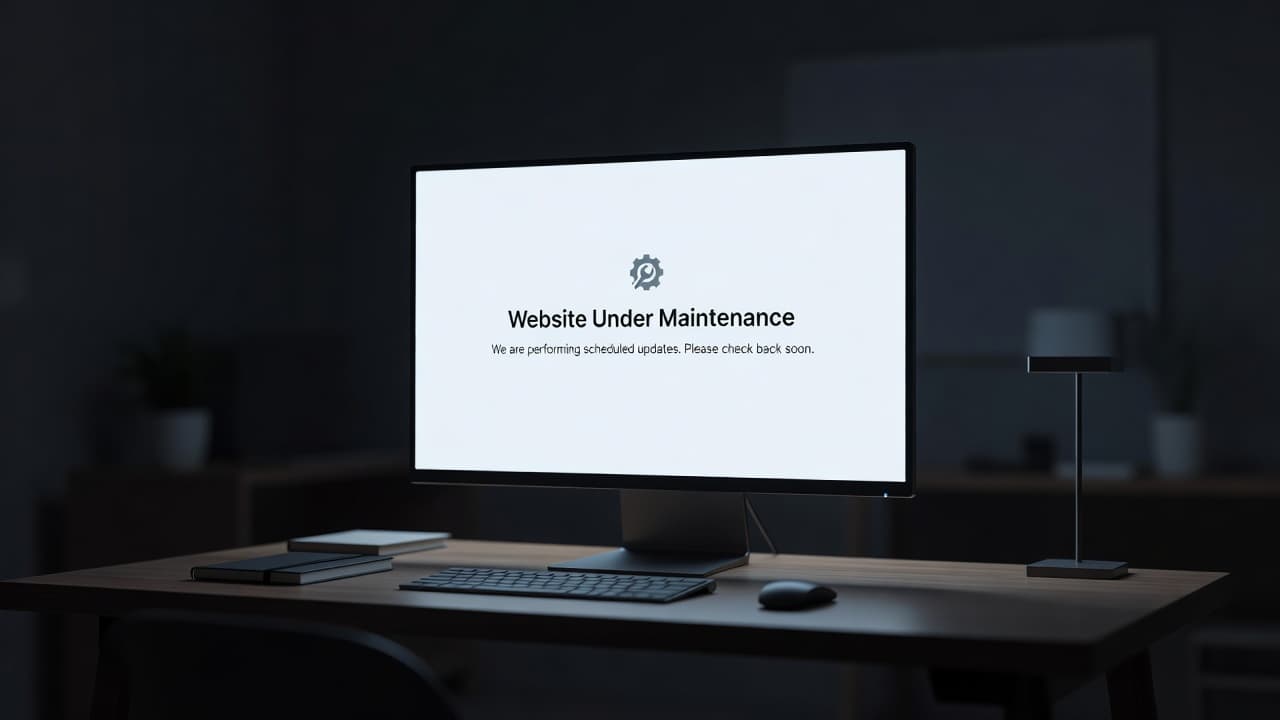
A good page often includes:
- A short headline that says the site is temporarily unavailable.
- A brief line about why the work is happening.
- A realistic return time, if we have one.
- A contact path for urgent issues.
- A link to status updates, email, or social channels if needed.
If we want inspiration, maintenance page examples show how simple pages can still look polished. The best ones do not try too hard. They stay useful, clean, and easy on the eye.
If the page looks broken, people assume the business is broken.
That is why the design matters. A strong maintenance page keeps the brand steady, even while the work is behind the curtain.
For ZADiC customers, this is where reliable hosting setup helps. When we have backups, security tools, monitoring, and easy account control in one place, it becomes much easier to manage the pause without adding chaos.
Prepare the site before we switch anything
The safest maintenance window starts before maintenance mode ever appears. We need a backup, a staging copy if possible, and a quick review of what might change once the live site is back online.
Use staging before touching production
Whenever the work is more than a quick text edit, staging should be the first stop. It gives us a space to test updates, see layout changes, and catch plugin conflicts before customers do.
That is especially useful for small business sites and stores. A checkout issue on staging is a nuisance. A checkout issue on a live site costs money.
If we run our site on a host like ZADiC, this gets easier because we are not juggling five separate tools just to keep a site safe. We can keep the essentials close, one-click installs, account management, security options, and support when we need a hand. That kind of setup saves time before, during, and after the maintenance window.
Back up before anything goes live
Backups are not optional. They are the safety net.
Before we enter maintenance mode, we should confirm that we have a fresh copy of the site, the database, and any recent order or form data. If something breaks during the update, we want a fast rollback path, not a long night of guessing.
A quick pre-flight check helps too:
- Confirm the latest backup completed.
- Make sure key plugins or themes are up to date.
- Check for scheduled sales, launches, or email campaigns.
- Verify that monitoring is active so we know when the site comes back.
That last step matters more than people think. If a site goes down for maintenance and never comes back cleanly, the problem usually started with a missed check, not the update itself.
Keep customers and search engines in the loop
Maintenance mode should calm people down, not confuse them. The message needs to fit the moment. For a short update, a few hours is fine. For a longer repair, we need more structure.
A temporary 503 response is the right signal when the site will return soon. It tells search engines the outage is temporary, not a permanent removal. That small technical detail helps us avoid extra damage while the work is underway.
We also need to think about customer communication. If the site supports orders, bookings, or client logins, we should let people know where to go for urgent needs. That can be email, phone, a help desk, or a social channel.
A simple communication plan works well:
- Tell customers before the work starts if the site serves active buyers.
- State the expected maintenance window in plain language.
- Share a backup contact path for time-sensitive requests.
- Post an update when the site is live again.
And yes, the wording matters. We should avoid vague lines like “we’ll be back soon” if we know the window. People trust specifics. They are calmer when they know what to expect.
We should also keep the maintenance page out of the way of normal browsing. No broken menus. No dead buttons. No weird redirects. The best maintenance mode feels temporary, not sloppy.
Turn maintenance mode off with the same care we used to turn it on
Switching maintenance mode off should be a final check, not a reflex. It is tempting to flip the switch and move on. Better to review the site first.
We should open the homepage, a few key pages, the contact form, the checkout flow if one exists, and any page that changed during the update. Then we should test on mobile and desktop. A site can look perfect on one screen and awkward on another.
It also helps to check the quiet details:
- Does the old maintenance page clear properly?
- Are forms sending as expected?
- Did caching hold onto the old version?
- Are analytics and tracking still firing?
- Do SSL and security notices look normal?
When everything checks out, we can return the site to normal traffic and send one simple update to customers if needed. Short, direct, and done.
That is the real win here. We are not just hiding the site for a while. We are keeping the business usable, trustworthy, and ready to serve people the moment we reopen the doors.
Conclusion
A live business website does not need panic when it needs work. It needs maintenance mode used with a plan, a clear message, and a clean finish.
When we back up first, test on staging, explain the downtime, and bring the site back carefully, we protect trust instead of chipping away at it. That is where good hosting matters too, because simple management, security, monitoring, and human support make the whole process easier.
The best maintenance window is the one customers barely notice, except for the part where everything comes back looking right.