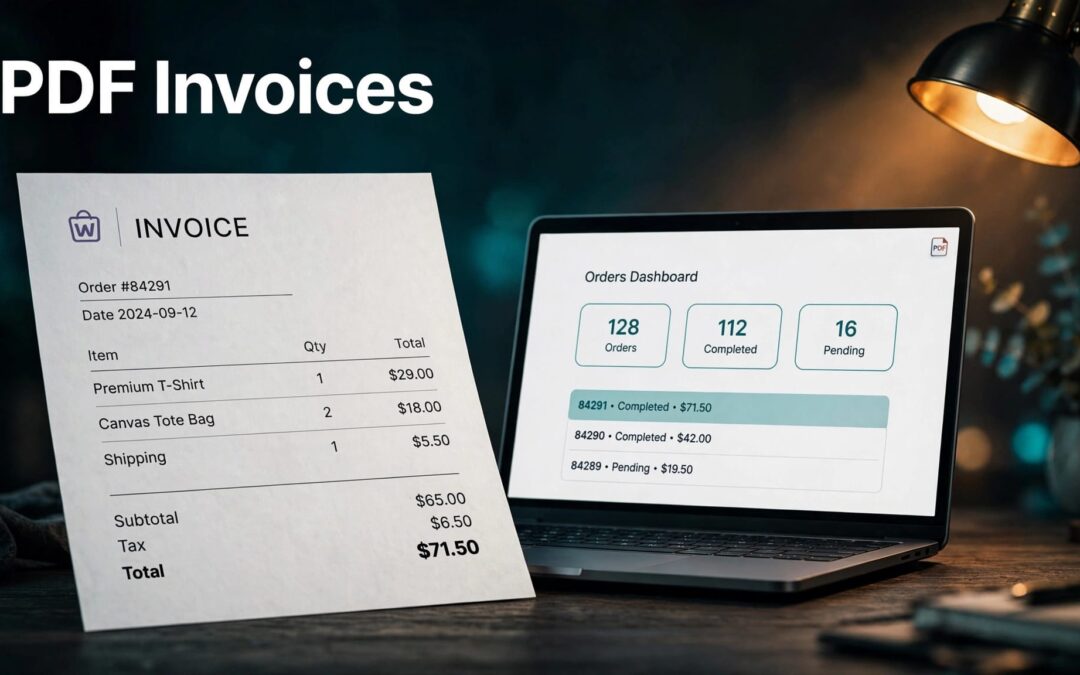
You can create WooCommerce PDF invoices with an invoice plugin, then attach them to customer emails or download them from order administration. Set it up once, and your store can handle the paperwork without rebuilding each invoice by hand.
We recommend starting with accurate order details, then choosing how customers receive their documents. A polished PDF helps, but the numbers and delivery need to work too.
Start with a plugin that fits your order workflow, then test the complete purchase journey before switching on automation.
Key Takeaways
- Use a PDF invoice plugin to generate documents using your WooCommerce order details.
- Match invoice delivery to the right customer emails, and test downloads separately.
- Compare product totals, discounts, shipping, and taxes against the saved order before sending invoices.
- Keep invoice PDFs, bookkeeping exports, and payment records connected, but treat each as a separate record.
Choose a Plugin for WooCommerce PDF Invoices
The right plugin should remove repetitive work without adding a dashboard full of settings you don't need. Start with how you sell and which documents your customers expect.
Start with WP Overnight for Everyday Invoicing
PDF Invoices & Packing Slips for WooCommerce by WP Overnight is a practical starting point. It can attach invoices to customer order emails and lets administrators download or print invoices and packing slips.
That covers a useful everyday workflow: the customer gets a record, and your team gets the paperwork needed for fulfillment.
We recommend keeping the first setup simple. Get the invoice content and delivery working before spending time on decorative changes.
Add Features When the Workflow Needs Them
Need proforma invoices or credit notes? Those requirements deserve attention before you settle on a plugin.
WP Overnight's Professional extension adds those document types and more customization options. The separately listed PDF Invoices extension on WooCommerce.com also supports customizable invoice attachments and customer downloads.
Similar names can hide different settings. Choose one invoice system for the workflow, rather than installing overlapping plugins that could generate duplicate documents.

Set Up PDF Invoices for WooCommerce Orders
We'll use WP Overnight's plugin for the setup below. Its settings belong to that plugin, so another extension may organize its controls differently.
Back up an existing store before adding plugins. A staging copy gives you room to work without changing documents for paying customers.
Install the Plugin and Open Its Settings
In your WordPress dashboard, open Plugins > Add New. Search for PDF Invoices & Packing Slips for WooCommerce, select the WP Overnight plugin, and install it.
Activate the plugin, then open WooCommerce > PDF Invoices.
You can also install it by uploading its ZIP file through the plugin upload screen. Use one installation method, then move into configuration.
Avoid activating a second invoice plugin alongside it unless you've deliberately separated their jobs. One clear owner for invoice generation keeps troubleshooting easier.
Add Business Details and Build a Readable Document
Enter your business details and add your logo through the available settings. Keep contact information clear so customers know where to send billing questions.
Review the generated invoice for the buyer's details, purchased items, quantities, charges, and document identifiers. These are practical review points, not a universal legal checklist.
Keep the layout easy to scan. Long product names and billing addresses need space, especially when customers print the PDF.
Send Invoices Where Customers Expect Them
Creating a document is only half the job. Your customer needs a dependable way to receive it, save it, and find it later.
Match Attachments to Customer Emails
Choose the customer emails that should carry an invoice in your selected plugin. Match those choices to your payment and fulfillment process.
An order acknowledgment and a paid-order record can describe different moments. Your invoice wording shouldn't suggest that payment cleared when the order is still awaiting payment.
WooCommerce.com's PDF Invoices documentation describes invoice attachments for paid or completed orders and other emails. That behavior belongs to that extension, rather than every similarly named plugin.
Keep Downloads and Packing Slips Separate
Customer downloads provide another route when an email gets buried. The WooCommerce.com PDF Invoices extension supports access through the Thank You page or My Orders.
With WP Overnight, administrators can download or print invoices and packing slips through order administration.
We recommend treating each document as its own tool. An invoice records the sale and charges. A packing slip helps your team identify what belongs in the parcel.
For stores selling files, the invoice also remains separate from access to the purchased download.

Test the Numbers Before Automating Delivery
A professional-looking invoice can still carry the wrong total. The safest test starts at checkout and ends with the document your customer receives.
Compare the PDF with the Saved Order
Complete a controlled purchase using staging and your payment gateway's test mode where available. Open the saved WooCommerce order, then compare it with the PDF.
Review the product subtotal, discount, shipping charge, product tax, shipping tax, and final total. Select the actual variation when testing variable products.
Then repeat with another destination, mixed tax classes, and a coupon your store accepts. Discounts can affect taxable amounts, so promotion testing belongs here too.
A PDF can accurately reproduce an incorrect order. Fix the underlying checkout calculation before changing the invoice template.
If shipping tax is missing, review the shipping method's tax status, the rate's Shipping checkbox, and the selected shipping tax class.
Test Delivery as Carefully as the Layout
Run the buying journey on mobile and desktop. Include guest checkout if your store offers it.
Open the actual email attachment. Test available account downloads separately, including any restrictions tied to order status. WooCommerce's invoice download settings documentation describes these controls for that extension.
Inspect long addresses, multiple products, and page breaks. A clean single-item preview doesn't prove that a larger order will print correctly.
Make one change, then repeat the same test. You'll have a much clearer picture of what fixed the problem.
Keep Invoice Records Useful for Bookkeeping
PDF invoices give customers a readable sales record. Your bookkeeper may need structured order data instead.
A folder of PDFs won't automatically explain payment fees, refunds, or the amount deposited into your bank account. Those records answer different questions.
We recommend keeping the invoice connected to its WooCommerce order and retaining the relevant payment and adjustment records. Stable identifiers make that handoff easier when someone needs to trace a transaction later.
For spreadsheet-based reporting, our guide to exporting WooCommerce orders for bookkeeping covers a separate CSV or XML workflow.
Pay attention to the export structure. A file organized by line item can contain several rows for one order. Counting rows as orders can distort your totals.
Refunds need their own clear records too. Avoid treating an edited invoice as a substitute for a documented refund or credit-note process.
Finally, protect the files. Invoices contain customer information, so they shouldn't sit in a publicly browsable folder or a shared account with unrestricted access.
Give Invoice Automation a Reliable Hosting Base
Your invoice plugin still depends on the store underneath it. PDF generation, email sending, checkout, and customer downloads all need working server resources.
When documents fail, separate the symptoms. Does the PDF fail to generate, or does the email arrive without it? Does the attachment open, while the customer download fails?
Those are different problems. Reviewing the affected order, plugin settings, and server errors is more useful than repeatedly reinstalling the plugin.
Our WooCommerce hosting checklist helps you plan for resources, HTTPS, backups, and testing before launch. Keep Cart, Checkout, and My Account outside shared full-page caching so customer-specific pages don't show stale information.
Ready to give your store a dependable foundation? Our WordPress hosting plans put your hosting purchase within easy reach, with our 24/7 customer support available when you need help.
Hosting won't choose your tax rules or repair an incorrect template. It gives your store a dependable place to run the workflow you've built.
Frequently Asked Questions
Can WooCommerce Create PDF Invoices Without a Plugin?
For the workflow described here, use a PDF invoice extension. WooCommerce order emails and printable browser pages aren't the same as automatically generated PDF invoices.
WP Overnight's plugin handles invoice attachments and administrator downloads. Other extensions offer their own delivery and document controls.
We recommend choosing around the documents you need, rather than installing several tools with similar names.
Does a PDF Invoice Prove That an Order Was Paid?
An invoice records the sale and charges. Its presence alone doesn't establish that payment cleared.
Use the saved order and payment gateway record to establish payment status. Then keep the invoice wording consistent with that record.
This matters when customers use payment methods that don't settle immediately. A document shouldn't promise more than the order history supports.
Can WooCommerce Generate Credit Notes or Proforma Invoices?
Yes, with an extension that supports those document types. WP Overnight's Professional invoice extension includes proforma invoices and refund or credit-note features.
Choose these features when your billing process needs them. They aren't interchangeable with an ordinary sales invoice, and generating a document doesn't by itself establish legal compliance. Your accountant can advise on the records your business needs.
Make Every Invoice Ready to Send
Reliable WooCommerce PDF invoices start with accurate orders and a tested delivery path. Choose one invoice system, review the document, and follow it through the customer journey.
We recommend getting one complete purchase right before automating the rest. Pair that workflow with dependable hosting, and your store can handle routine paperwork with less manual effort.
Clear totals. Accessible documents. A smoother handoff after every sale.