

Switching a site to HTTPS should feel like a win. Then the padlock vanishes, images go missing, or a form stops working.
That’s usually mixed content. The page is secure, but some of its files still load over HTTP. The good news, we can fix it without turning the site inside out. Let’s start with the cause.
Why mixed content shows up after SSL
When we install SSL, the page URL changes to HTTPS. That part is easy. The trouble starts when old resources, images, scripts, stylesheets, fonts, or embeds, still point to http:// addresses.
Browsers don’t like that, and for good reason. As MDN explains in its mixed content guide, insecure scripts and styles can be blocked outright, while some images may be upgraded or flagged. That means broken layouts, missing media, and warnings that chip away at trust.
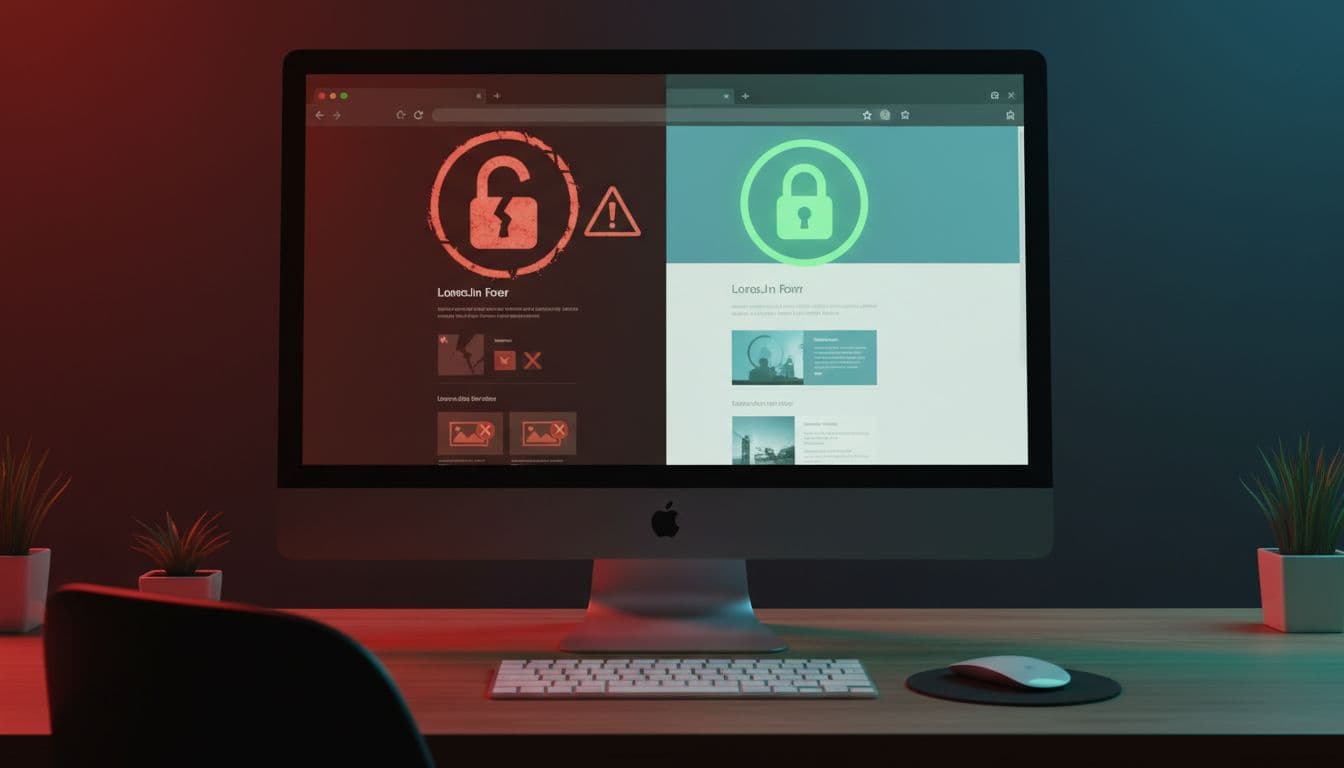
Mixed content doesn’t mean SSL failed. It means part of the page never made the move to HTTPS.
We usually see this after a migration, a plugin change, or a theme that still has hardcoded links. Old blog posts can do it too. So can third-party tools, ad pixels, font files, or a CDN still calling the insecure version of an asset.
This is where hosting choices matter more than people think. A setup with backups, easy file access, and solid support cuts repair time fast. If we’re running WordPress, starting on WP hosting with free SSL gives us a cleaner base before these small issues turn into a bigger mess.
How we spot the exact problem fast
Guessing wastes time. The fastest way to fix mixed content is to let the browser tell us what’s wrong.
We open the page in Chrome or Firefox, right-click, choose Inspect, then check the Console tab. Mixed content warnings usually appear in red and show the exact HTTP file that caused the problem. Lighthouse can help too, especially when the issue hides across multiple templates.
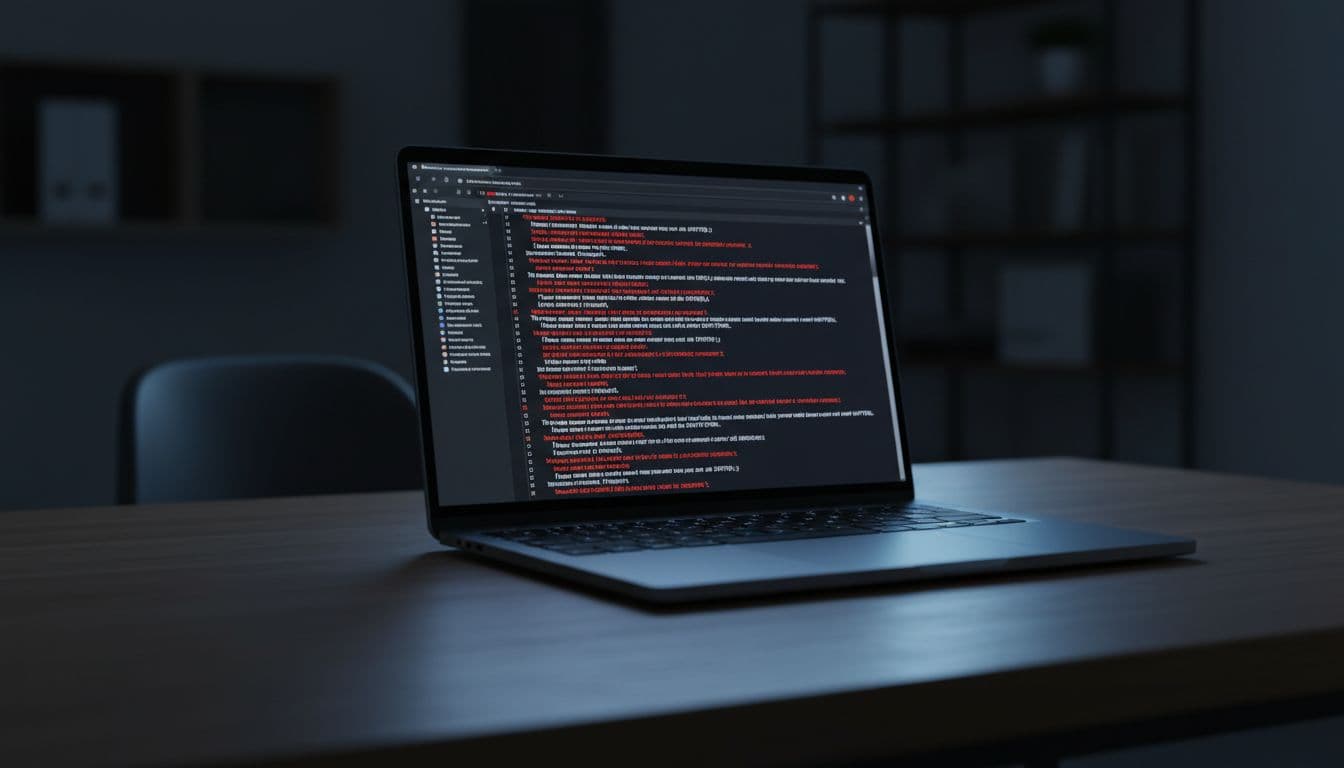
Mozilla also explains how mixed content blocking works in Firefox, and that matters because blocked scripts behave differently than a missing image. If the design looks broken, the problem is often a stylesheet or script. If only a few visuals disappear, it’s usually an old image URL.
Here are the places we check first:
| Common source | What we usually find |
|---|---|
| Old posts and pages | Image links still using HTTP |
| Theme or plugin files | Hardcoded script or stylesheet URLs |
| Widgets and page builders | Embedded assets saved before SSL |
| Third-party tools | Fonts, trackers, or APIs still calling HTTP |
The console gives us the file. Then we trace where that file is coming from. Sometimes it’s a post. Sometimes it’s a theme setting. Sometimes it’s buried in the database and shows up sitewide.
If we want one shortcut, it’s this: test more than the homepage. Product pages, blog posts, contact forms, checkout, and landing pages often each load different assets. One clean page doesn’t mean the whole site is clean.
How we fix mixed content so it stays fixed
There are quick patches, and there are permanent fixes. We want the permanent ones.
First, we update the site’s main URLs to HTTPS. In WordPress, that means the WordPress Address and Site Address should both use the secure version. We also force an HTTPS redirect so every visit lands on the right protocol.
Second, we replace old HTTP links in the database. This is where many mixed content issues live. A search-and-replace tool can update old image paths, internal links, and stored content in one pass. We always back up first. A dry run is smart. Fast is good, blind is not.
Third, we fix hardcoded URLs in theme files, child themes, header scripts, and plugin settings. If a resource exists over HTTPS, we switch it. If it doesn’t, we replace it. This is often the step that clears the last stubborn warning.

Fourth, we check anything external. Fonts, analytics, embedded media, tag managers, APIs, CDN assets, all of it. If a third-party service still serves a file over HTTP, the browser will keep complaining. Good hosting helps here because we can reach redirects, file manager, and SSL controls in one place. That’s one reason many site owners prefer a managed SSL service instead of piecing it together by hand.
Last, we add guardrails. MDN’s documentation on the upgrade-insecure-requests directive is a good example. It can tell browsers to request HTTPS versions of insecure resources when possible. It’s helpful for legacy pages, but it’s not a substitute for fixing the source. We still want clean URLs, proper redirects, and HTTPS-only assets.
One more thing, quick plugins that rewrite HTTP to HTTPS on the fly can be useful for a temporary rescue. They are not the best long-term answer. If the database, templates, or third-party tools still store bad URLs, the issue can come back on the next update, migration, or cache refresh.
Conclusion
A mixed content warning after SSL usually comes down to loose HTTP links still hanging around. Once we find the source, replace it at the source, and force HTTPS sitewide, the padlock comes back and the page behaves normally again.
That’s the real fix, not a bandage. Better hosting, clean SSL management, and a secure setup save time now and spare us the same cleanup later.